
# Dealroom Management
The Dealroom in CircleHD enables seamless collaboration by organizing essential sales content in one place. Easily add, edit, and manage resources to streamline sales engagements.
# Adding Content to the Dealroom
# Step-by-Step Guide
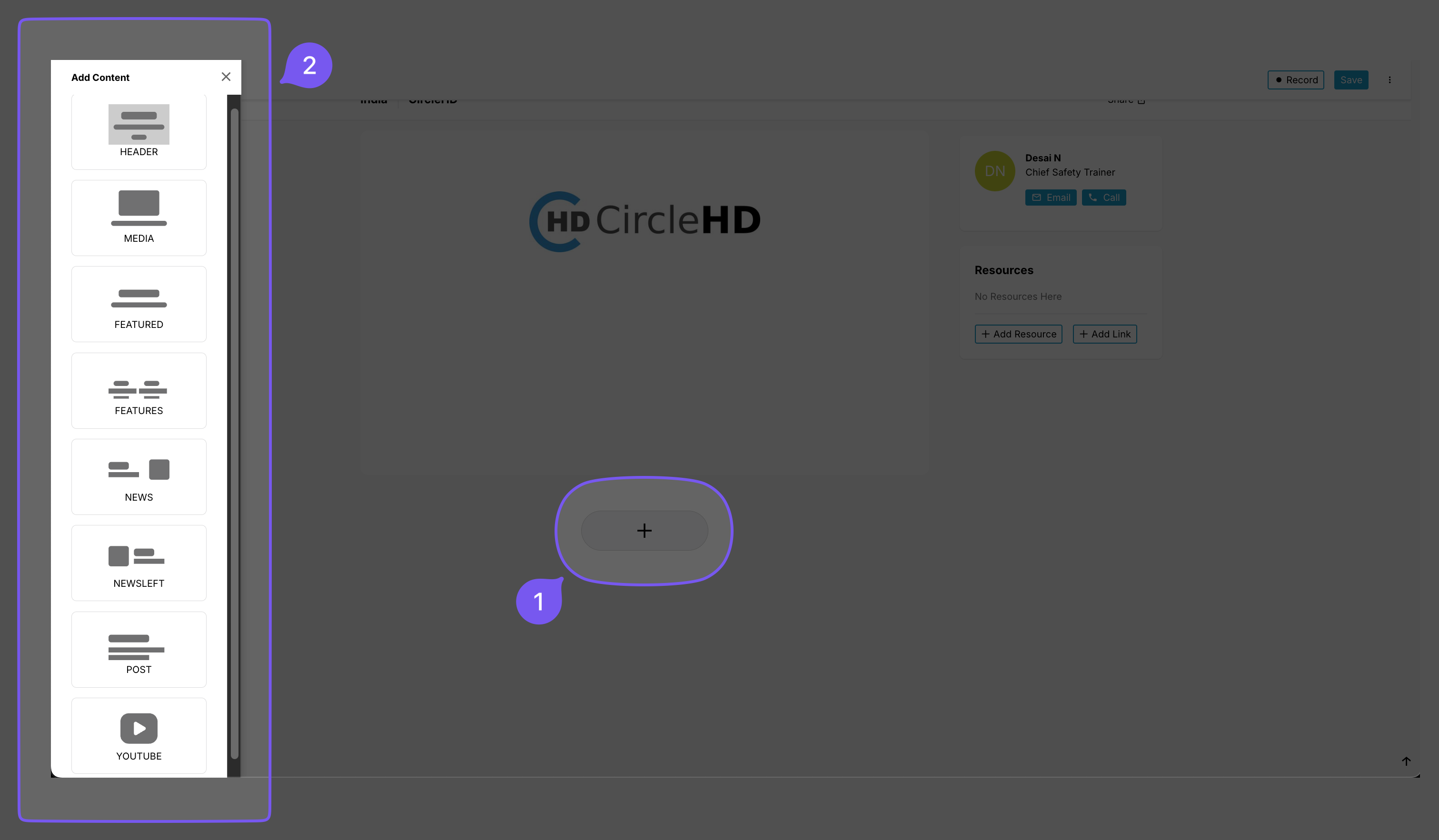
1️⃣ Click the "+" button in the center of the screen.
2️⃣ A sidebar labeled "Add Content" will appear on the left.
3️⃣ Choose a content type to add:
| Content Type | Function |
|---|---|
| HEADER | Adds a section header |
| MEDIA | Inserts images or videos |
| FEATURED | Highlights specific content |
| FEATURES | Displays multiple featured items |
| NEWS | Shows news-related content |
| NEWSLEFT | Aligns a news section to the left |
| POST | Adds a new post |
| YOUTUBE | Embeds a YouTube video |
✅ Clicking on a content type will add it to the workspace.
✅ You can edit or rearrange the content after adding it.
✅ Click Save (top-right corner) to retain changes.
# Editing a Dealroom
Modify key details of a Dealroom as follows:
# Steps to Edit a Dealroom:
1️⃣ Click on the Dealroom you want to edit.
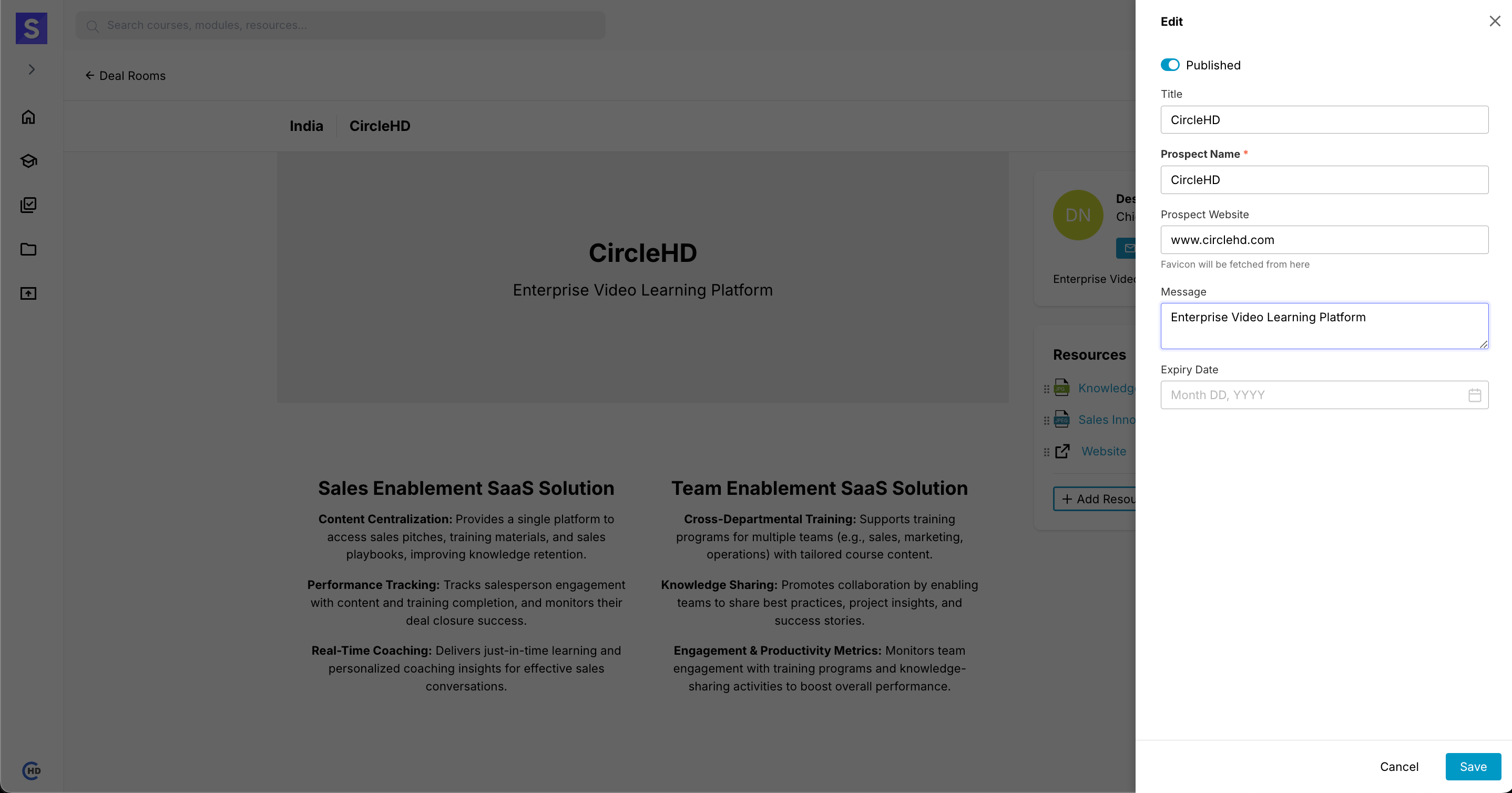
2️⃣ Update the following fields:
| Field | Description |
|---|---|
| Title | Change the Dealroom’s name |
| Prospect Name | Modify the associated prospect |
| Prospect Website | Automatically fetches the website's logo when updated |
| Message | Edit the Dealroom description |
| Expiry Date | Set an expiration date for access control |
3️⃣ Click Save to apply changes.
# Managing Resources in a Dealroom
# Resource Management Options
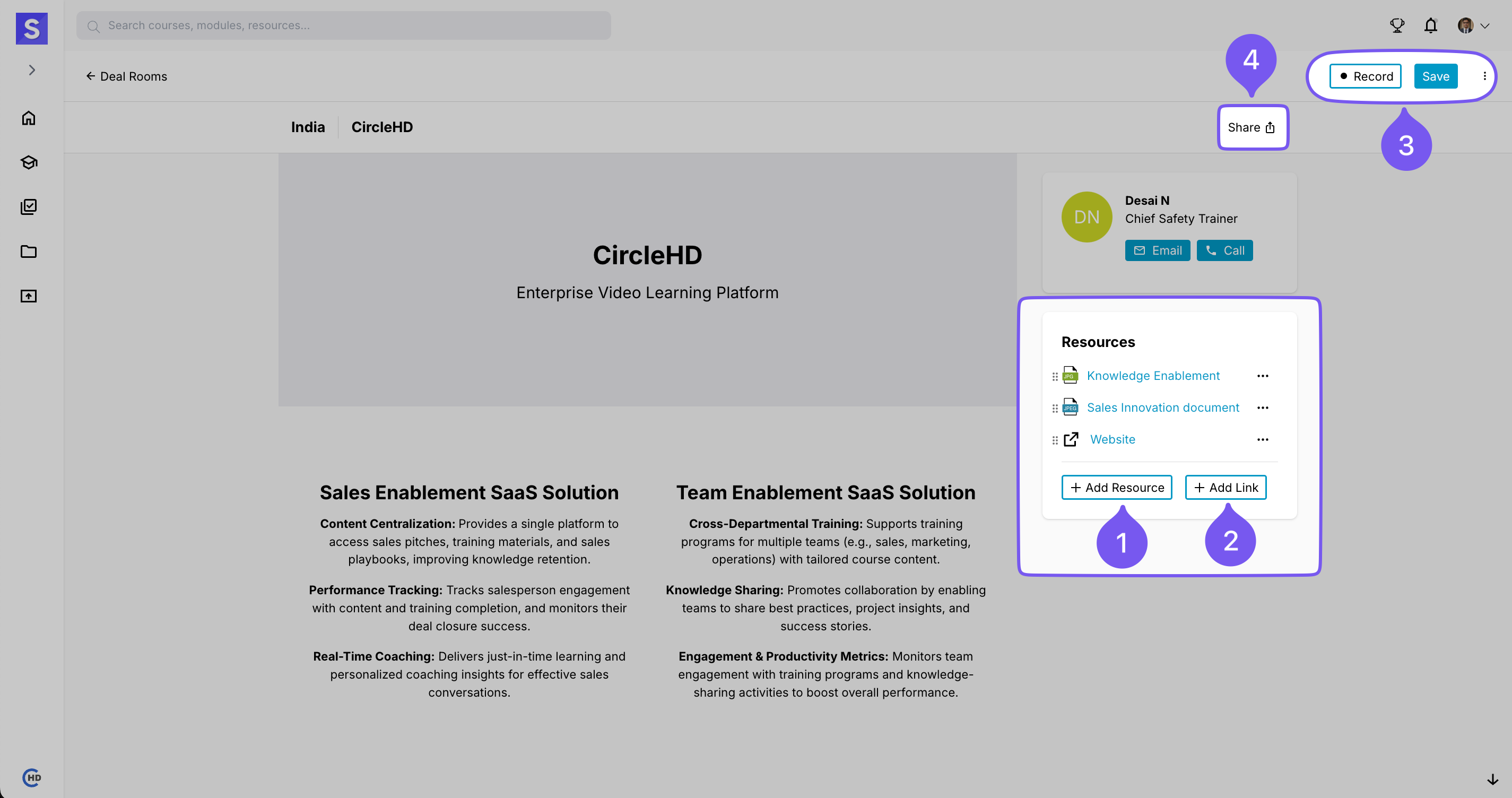
📂 Add Resource → Upload essential files like documents, presentations, or training materials.
🔗 Add Link → Insert external links to relevant websites, learning resources, or knowledge bases.
# User Actions
🎥 Recording → Capture meetings or discussions for future reference.
💾 Saving → Save updates to keep content current.
📤 Sharing → Use the "Share" button to distribute Dealroom content with your team.
⚠️ Only the Dealroom owner can make these changes.