
# Creating a New Podcast Show
The Podcast module allows administrators to create and manage podcast shows within the LMS platform for delivering audio-based learning content. This guide explains the steps required to create a new podcast show.
# ➕ Steps to Create a New Podcast Show
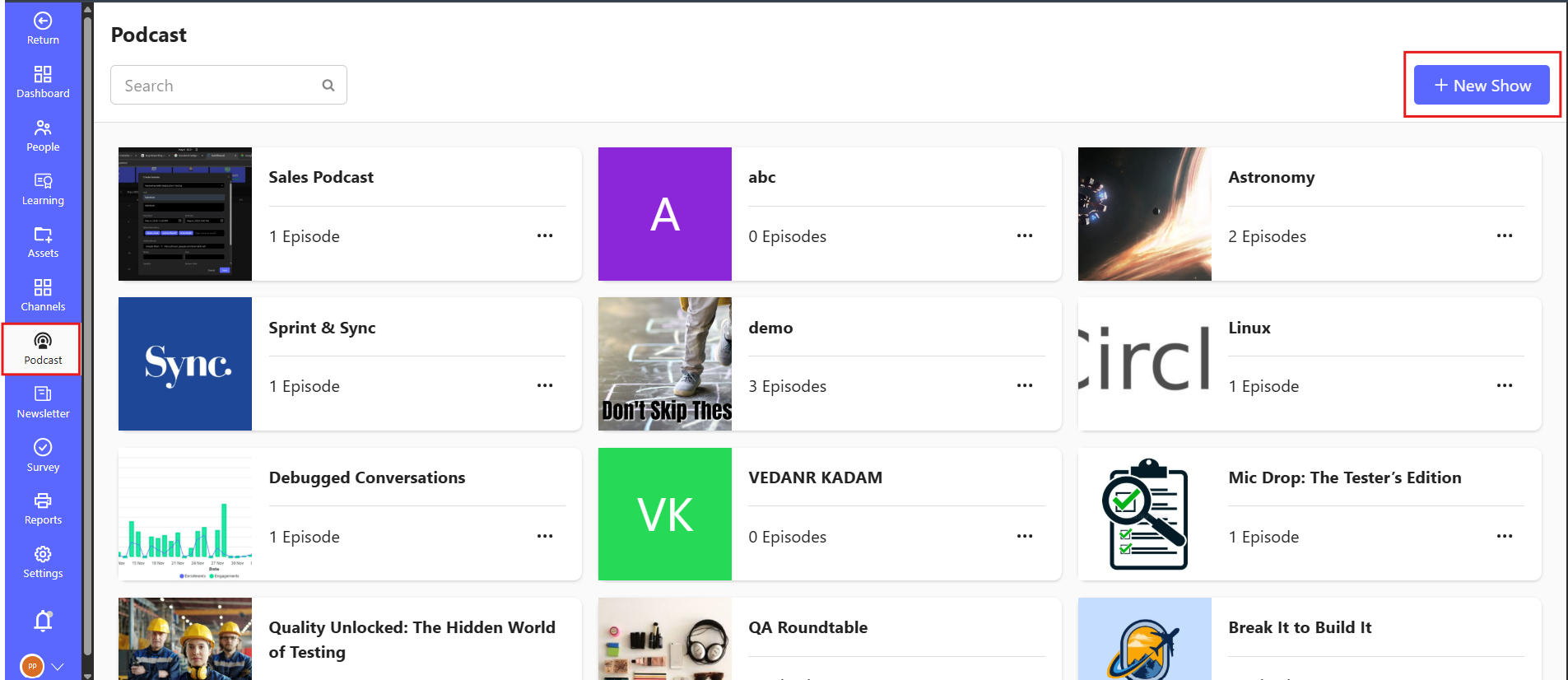
- Navigate to the Podcast section from the left-hand side navigation menu.
- Click the + New Show button located at the top-right corner of the page.
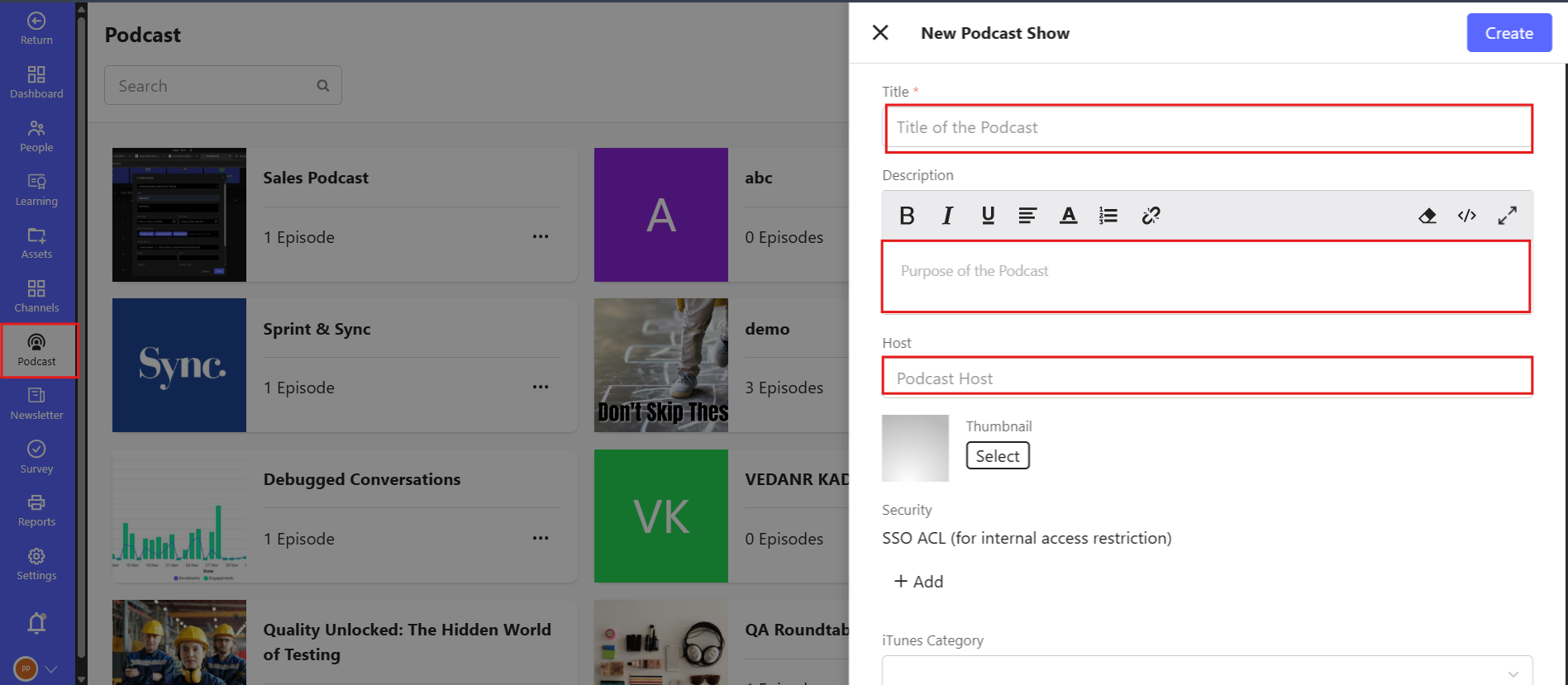
# 📝 Fill in the Podcast Show Details
Title
Enter a clear and concise title for the podcast.
Example:Programming Masterclass: From Beginner to ProDescription
Provide an engaging description that summarizes the podcast’s purpose and what listeners can expect.
Example:Welcome to the Programming Masterclass — your ultimate guide to mastering the art of code. Whether you’re just starting out or looking to sharpen your skills, this podcast delivers practical insights, expert interviews, and hands-on techniques across a wide range of programming languages and tools.
Host
Specify the name of the host for the show.
Example:AdamThumbnail
Upload a representative image or poster for the podcast.
# 🔐 Security & Visibility Settings
Department
Select one or more departments (SSO ACL) that will have access to the podcast.iTunes Category
Choose an appropriate category from the dropdown (e.g., Technology, Business, Education).Allow External Access
Toggle this setting if the podcast should be accessible outside the platform.Draft Mode
Enable this if you don’t want the show to be immediately visible to users.
# ✅ Final Step
Click Create to save and publish your podcast show. You can now begin adding episodes under this show.
# ℹ️ Tips
- Keep podcast titles short, clear, and easy to understand.
- Use the description section to explain the value and objective of the podcast.
- Upload a high-quality thumbnail image for better presentation.
- Use Draft Mode while preparing content before publishing it to learners.