
# Creating a New DealRoom
Easily set up a new DealRoom to manage sales engagements and store relevant content.
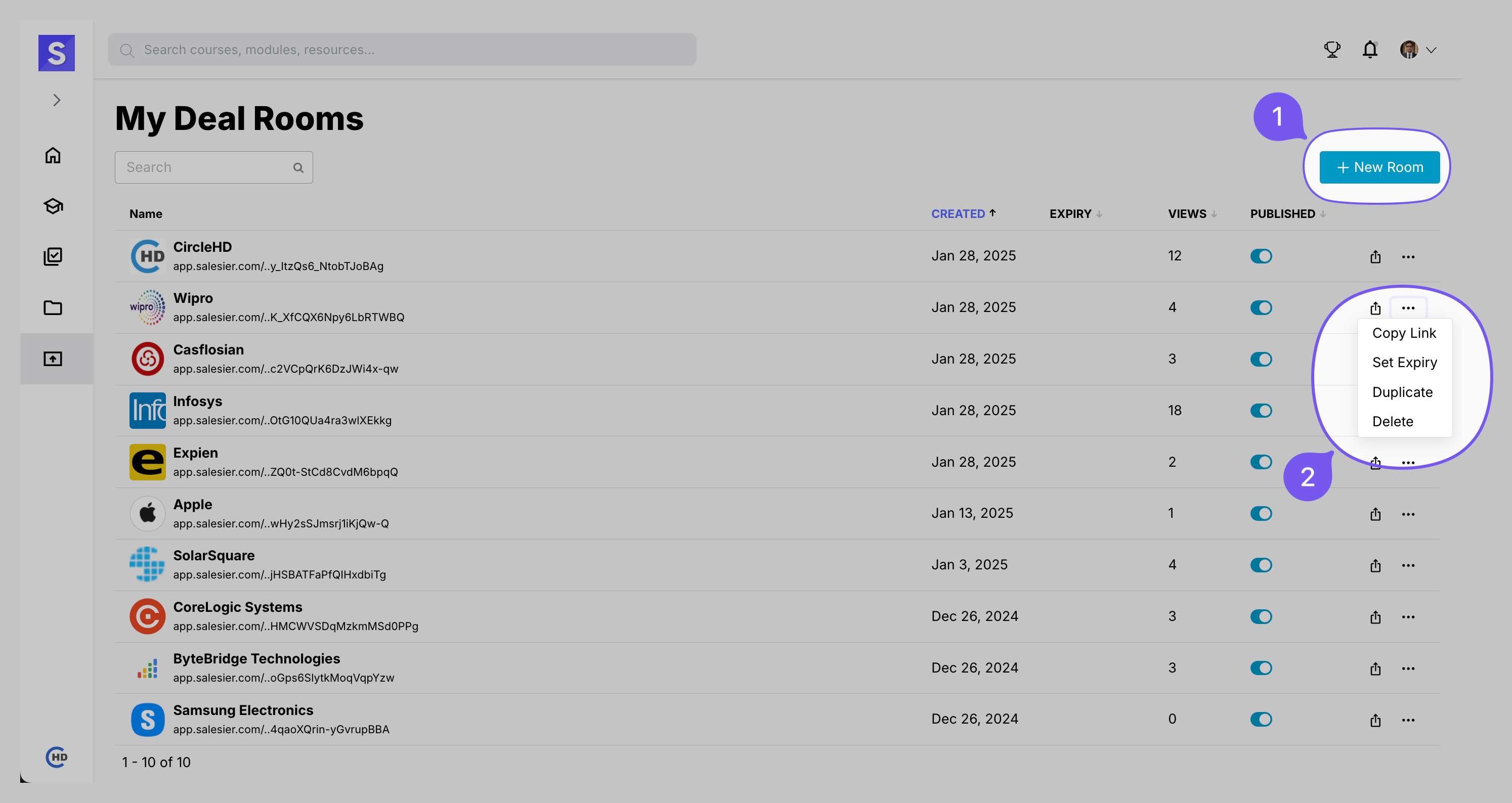
# Step-by-Step Guide
1️⃣ Click the + New Room button.
2️⃣ A New Room pop-up window will appear.
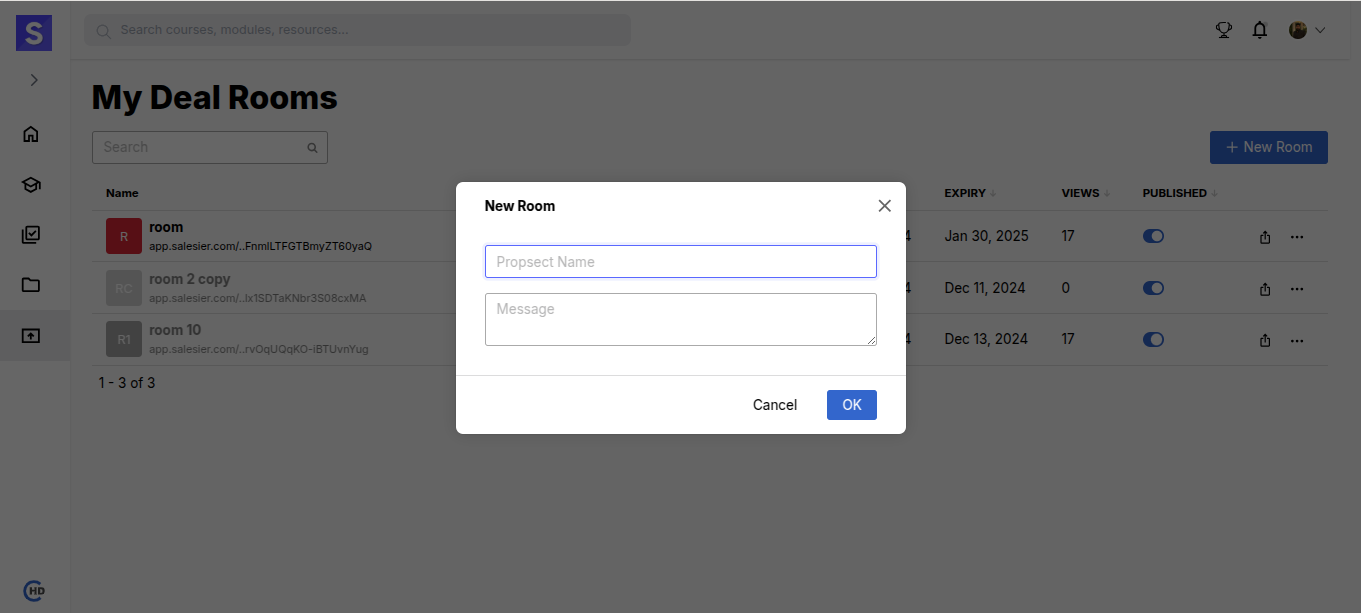
3️⃣ Fill in the following details:
| Field | Description |
|---|---|
| Prospect Name | Enter the prospect’s name |
| Message (Optional) | Add any relevant notes |
4️⃣ Click OK to create the DealRoom.
# Editing a DealRoom
Modify DealRoom details to keep them up to date.
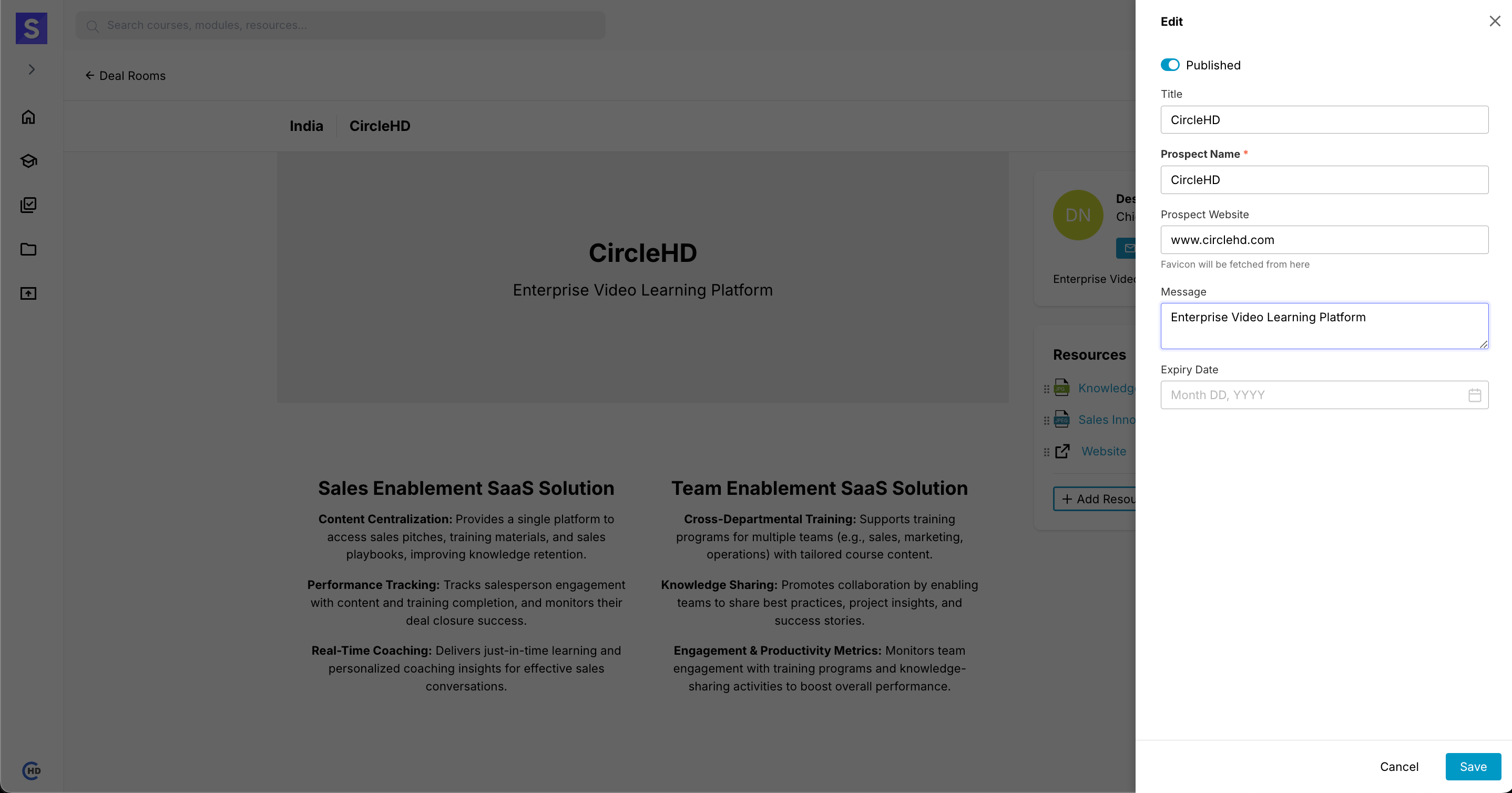
# Editable Fields:
✅ Title – Change the DealRoom’s name.
✅ Prospect Name – Update the associated prospect.
✅ Prospect Website – Automatically fetches the website’s logo upon update.
✅ Message – Modify the DealRoom description.
✅ Expiry Date – Set an expiration date for access control.
📌 Click "Save" to apply changes.
# Adding Content Using Pre-defined Structures
# Step-by-Step Guide
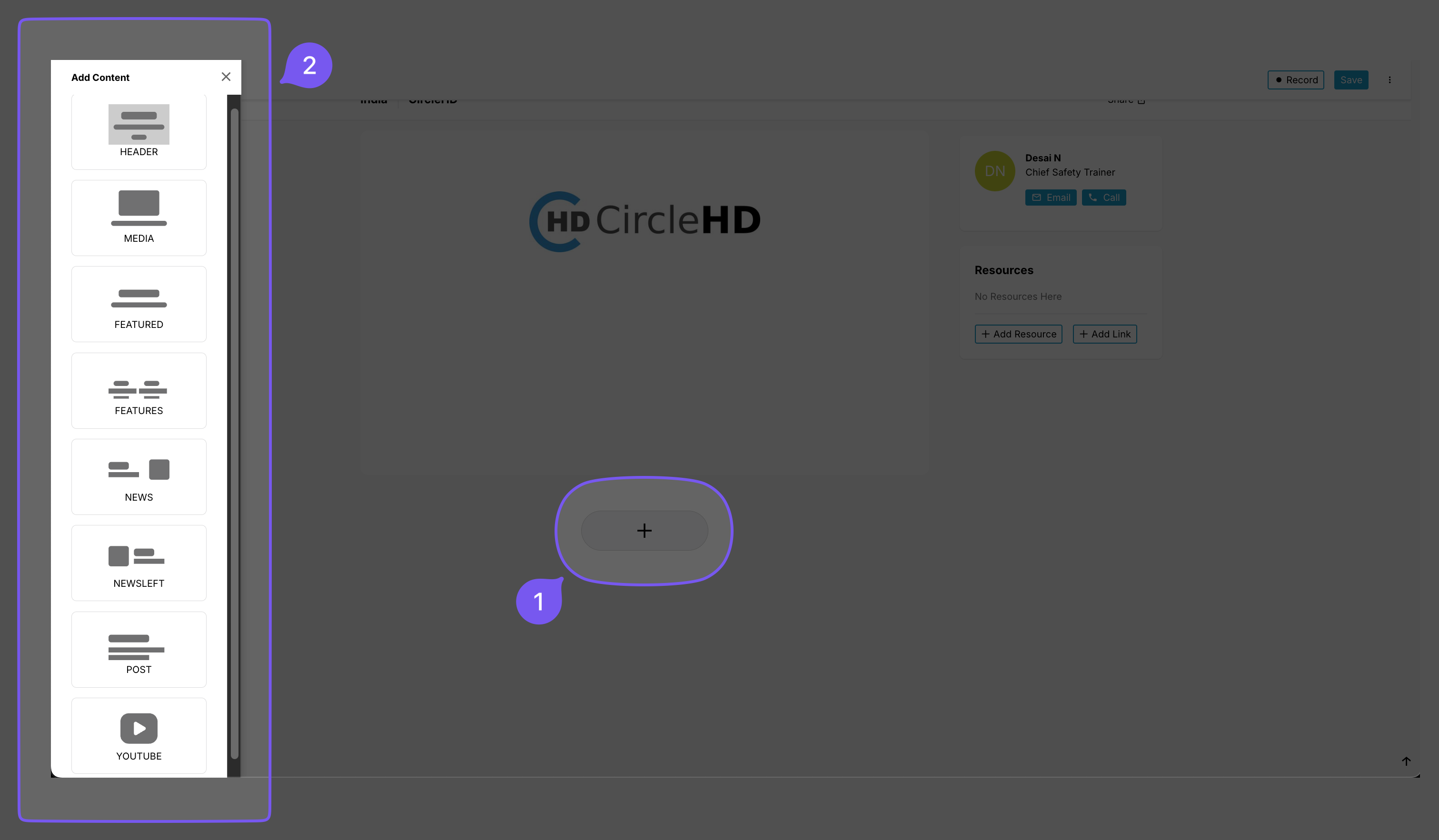
1️⃣ Click on the "+" button located in the center of the screen.
2️⃣ A sidebar labeled "Add Content" will appear on the left.
3️⃣ Choose a content type from the available options:
| Content Type | Description |
|---|---|
| HEADER | Adds a section header |
| MEDIA | Inserts images or videos |
| FEATURED | Highlights specific content |
| FEATURES | Adds multiple featured items |
| NEWS | Displays news-related content |
| NEWSLEFT | Aligns a news section to the left |
| POST | Adds a new post |
| YOUTUBE | Embeds a YouTube video |
# Notes
✅ Clicking on any content type will add it to the workspace.
✅ You can edit or rearrange the content after adding it.
✅ Click Save (top-right corner) to retain changes.