
# Editing an Existing User
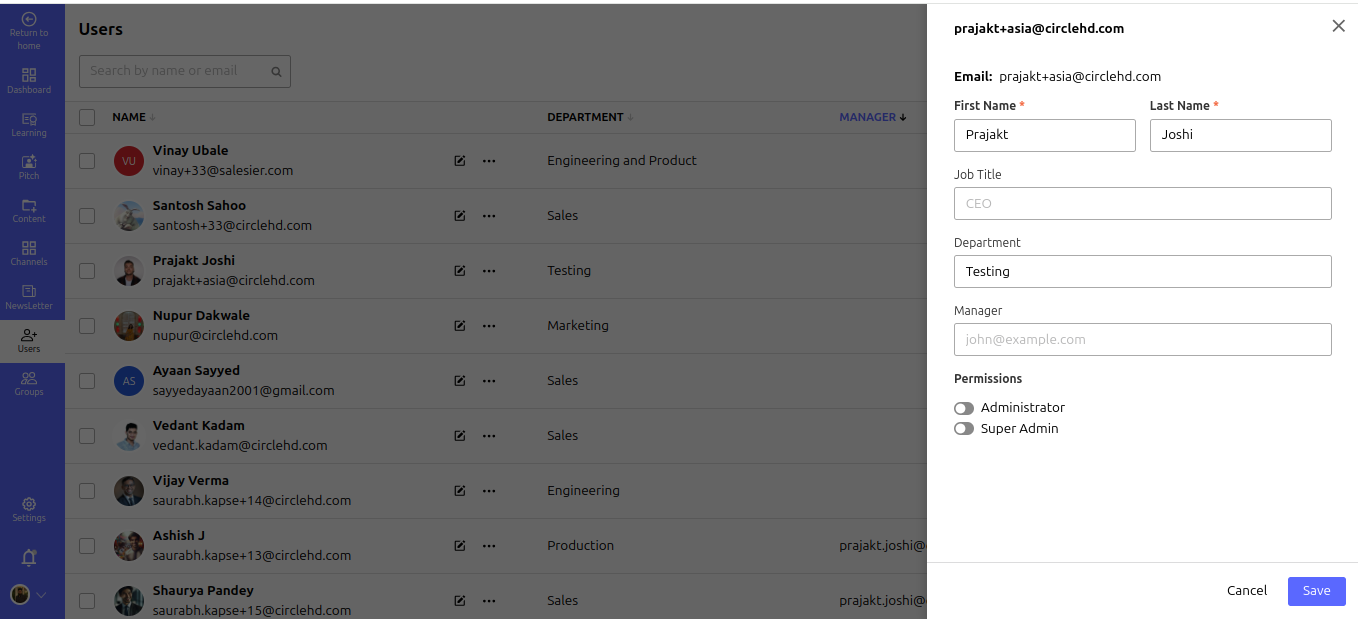
The Edit User feature in CircleHD allows administrators to update user information, roles, and permissions as needed.
# Steps to Edit an Existing User
Navigate to the Users Section
- From the left sidebar, click on Users.
Find the User
- Use the search bar to locate a user by name or email.
Open the User Profile
- Click the Edit icon (🖉) next to the user's name.
Modify User Details
- Update the following fields as needed:
- First Name
- Last Name
- Job Title
- Department
- Manager (If applicable)
- Permissions (Administrator or Super Admin toggle)
- Update the following fields as needed:
Save the Changes
- Click the Save button to apply updates.
Cancel Changes (If Needed)
- Click Cancel to discard any unsaved modifications.
# Important Notes:
- The Manager field is only available if the user has an assignable role.
- Permissions like Administrator and Super Admin should be assigned carefully, as they grant elevated access.
This functionality ensures that user information remains accurate and up to date within the system. 🚀