
# YouTube Configuration
- The YouTube Configuration feature allows administrators to add YouTube videos directly into the LMS Assets Module. These videos can then be assigned to employees for learning and training purposes.
# Before adding a YouTube video, ensure:
- You have Admin access to the LMS.
- A valid YouTube video link is available.
- The video is accessible (public or permitted access).
# Step One
- Login to the LMS Admin Panel.
- Go to the Administration section.
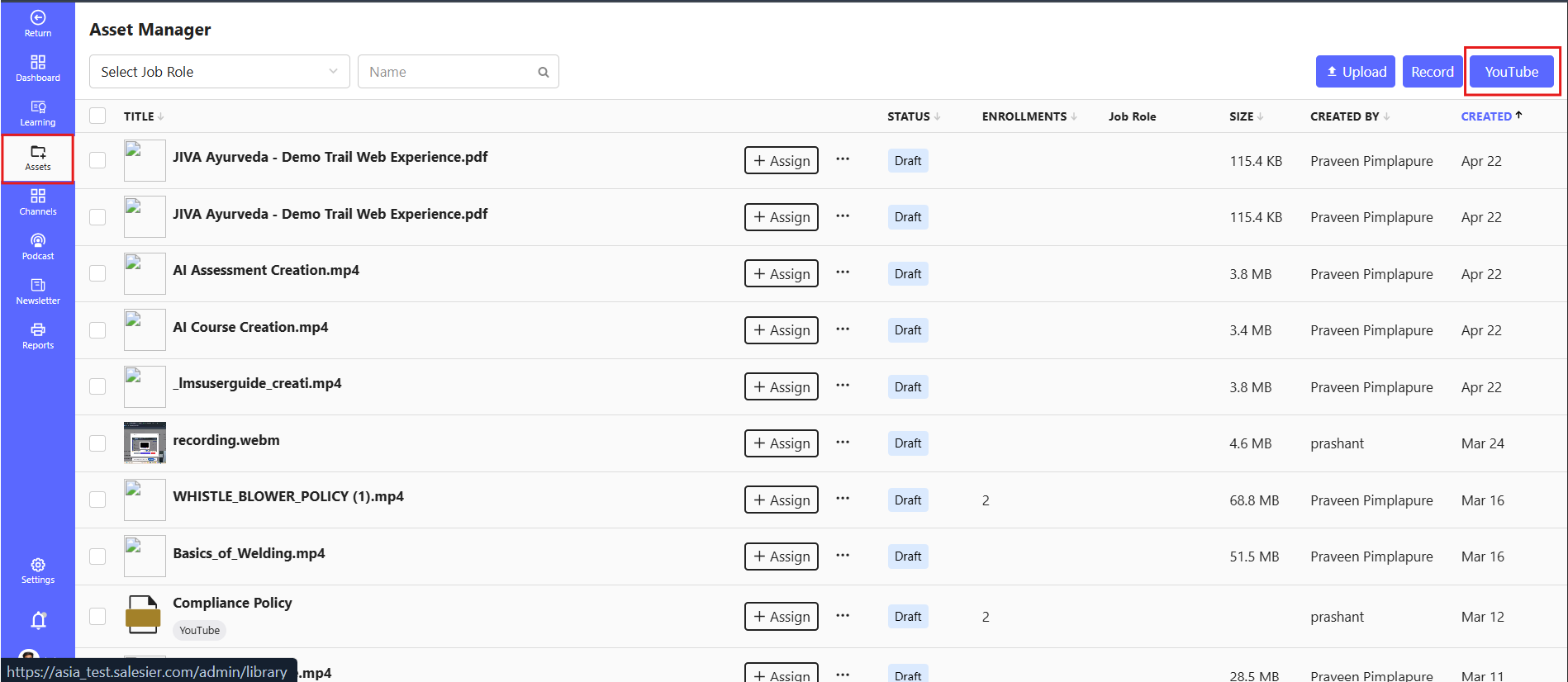
- From the left-side menu, click on Assets.
- Select YouTube Option
- On the Assets page, locate the YouTube option on the top-right corner. Click on it to proceed.
# Step Two
- Add YouTube Video Details
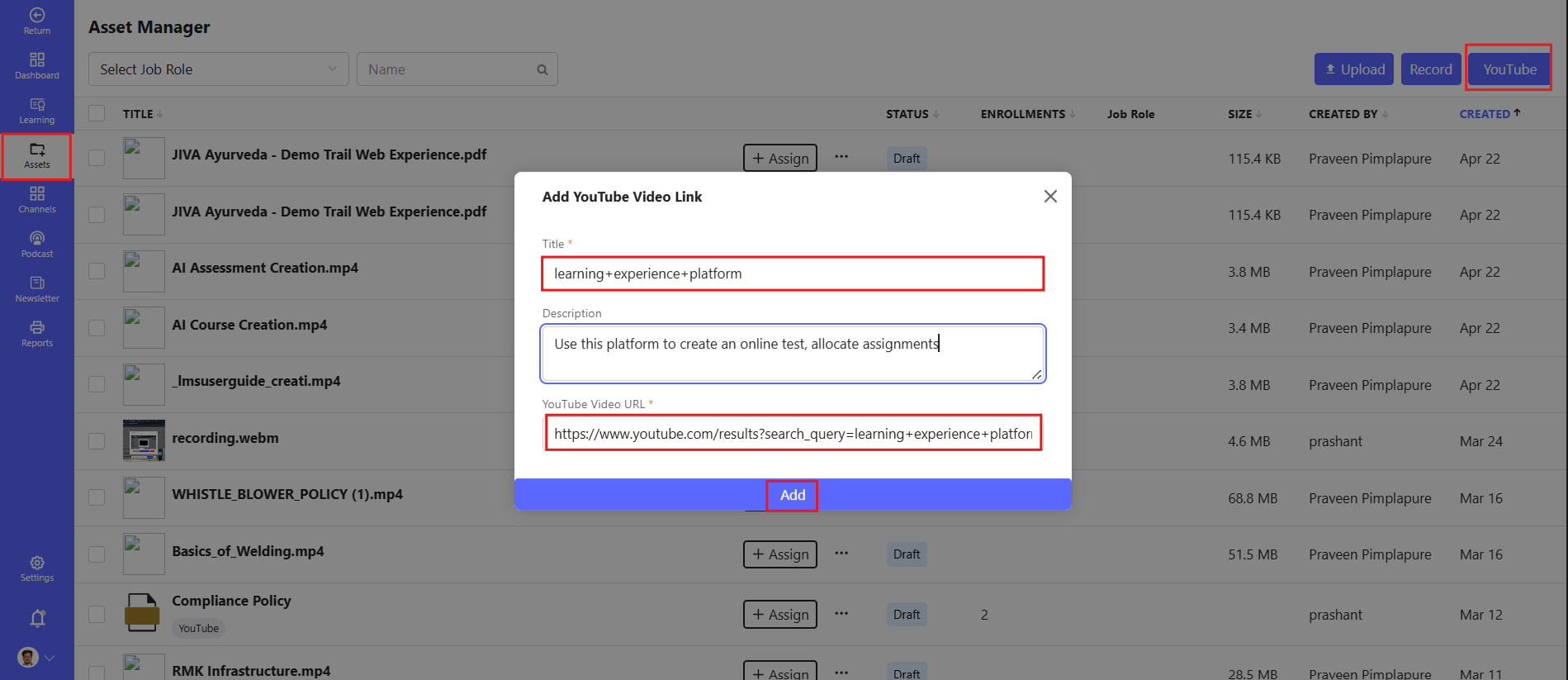
- A popup window will open.
- Fill in the following details:
- Title – Enter the video title.
- Description – Provide a brief description.
- YouTube Link – Paste the video URL.
- Click on the Add button.
- The video will be successfully added to the Assets Module.
# Assign Video to Employees
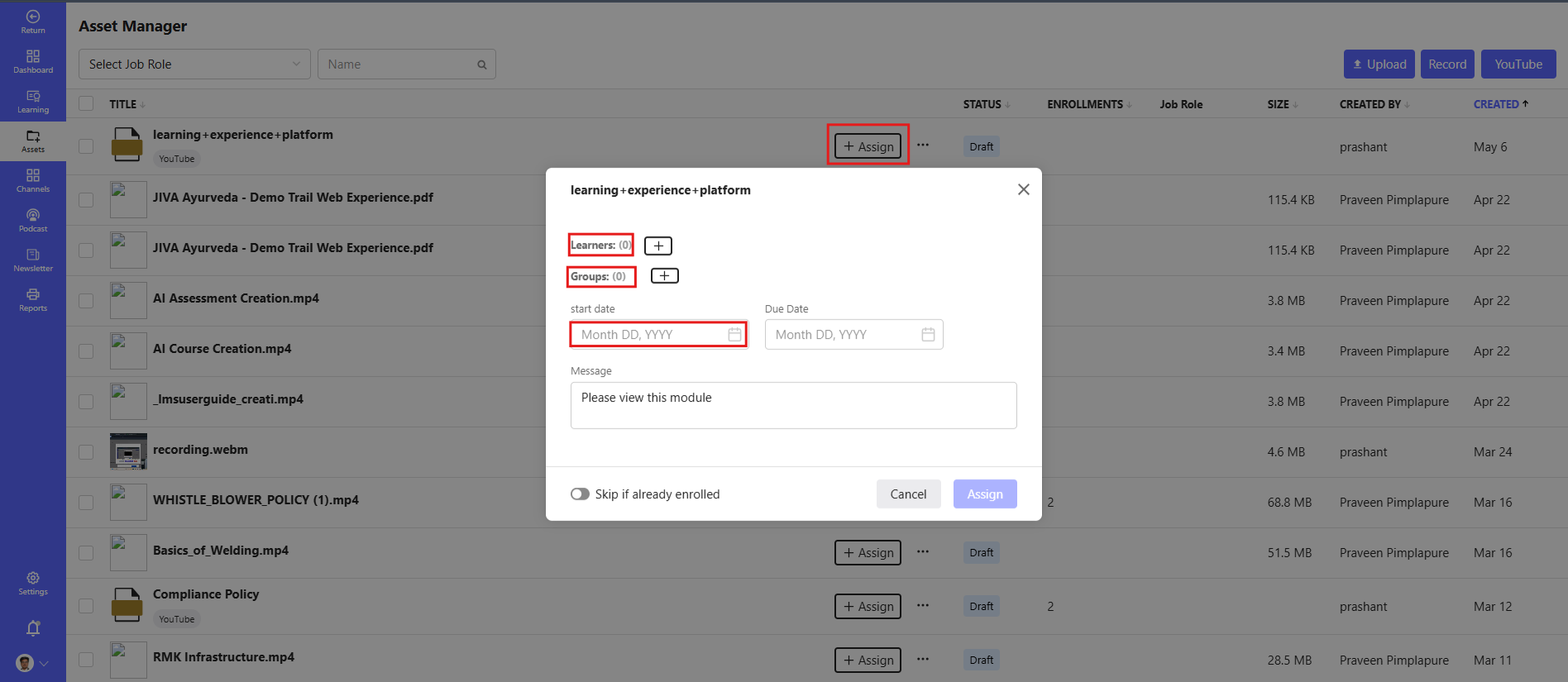
- Use the Assign Filter option.
- Select the required employees or groups.
- Assign the uploaded video content for learning.
# Key Notes
- Ensure the YouTube link is correct and publicly accessible.
- Titles should be clear for easy identification.
- Use proper descriptions to improve learning context.
# Troubleshooting
Issue: Video not loading
- Check if the YouTube link is valid.
- Ensure the video is not private or restricted.
Issue: Unable to add video
- Verify all required fields are filled.
- Check admin permissions.