
# Reports with Group Filter
# Overview
The Group Filter feature allows admins to download reports based on specific learner groups, enabling targeted analysis and better decision-making.
# Reports Supporting Group Filter
- Attendance ILT Report
- Engagement Report
- Skill Gap Report
- User Enrollment Report
- Badges Issued Report
- Assessment Details Report
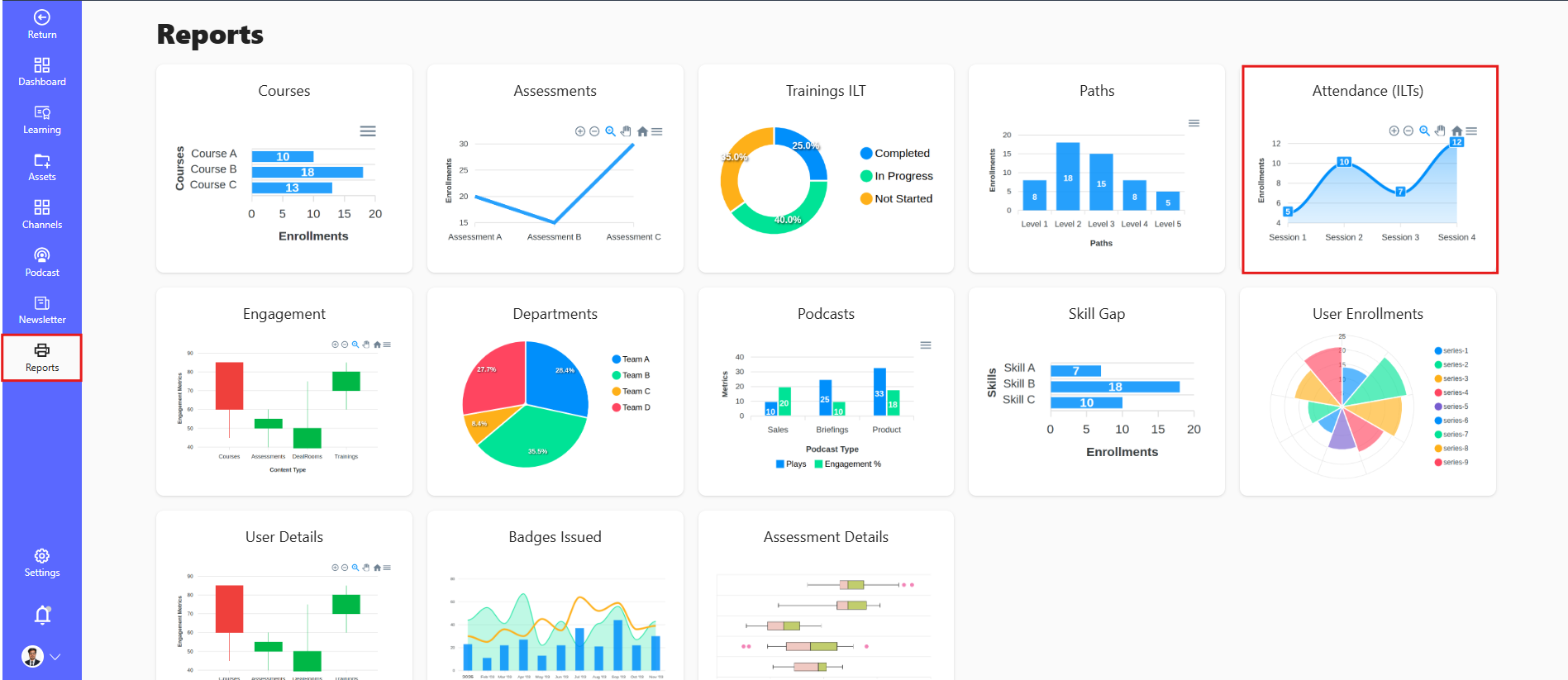
# Step 1: Go to Reports
- Login to Admin Panel
- Navigate to Reports Section
- Choose any report from the list (e.g., Attendance ILT, Engagement, Skill Gap, etc.)
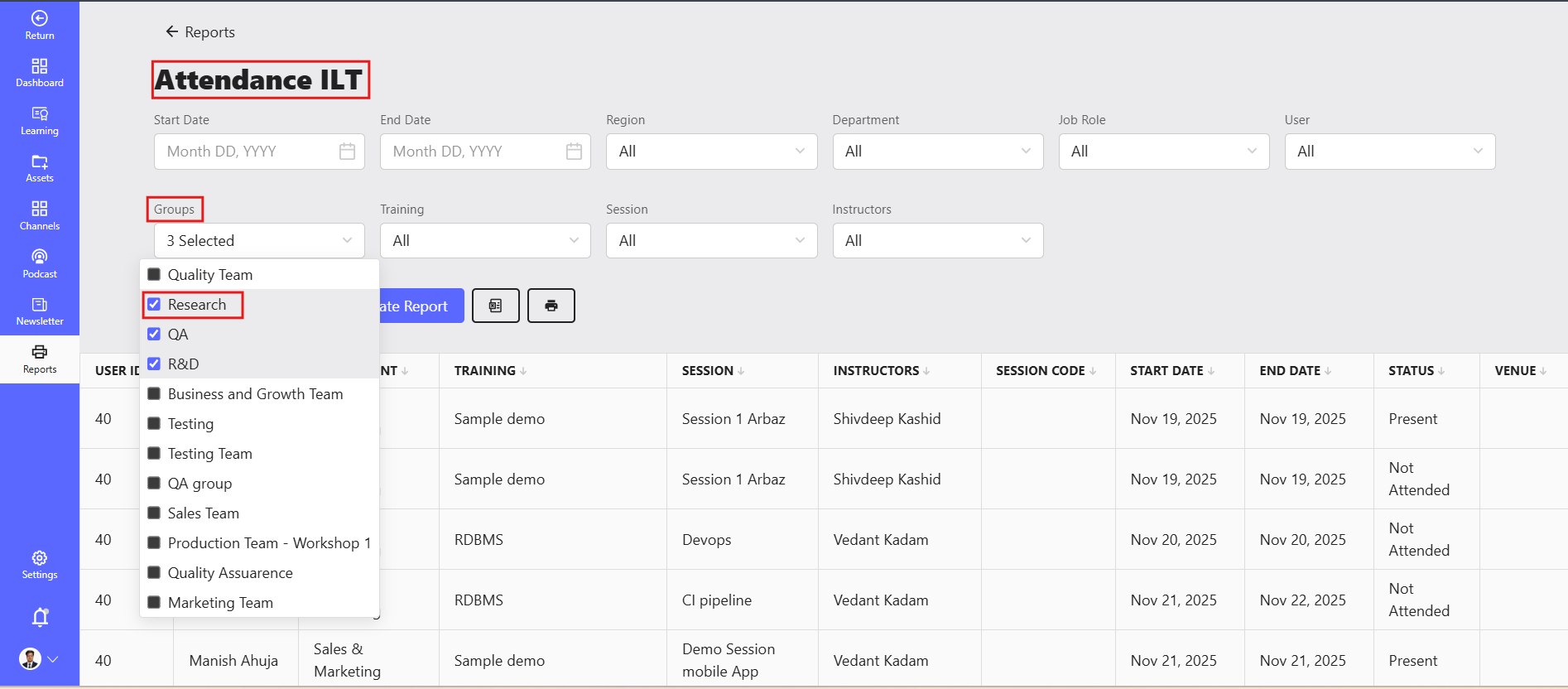
# Step 2: Apply Group Filter
- Locate the Group Filter dropdown
- Select the required group
- Ensure the report data is updated based on selected group
- Check user list / records
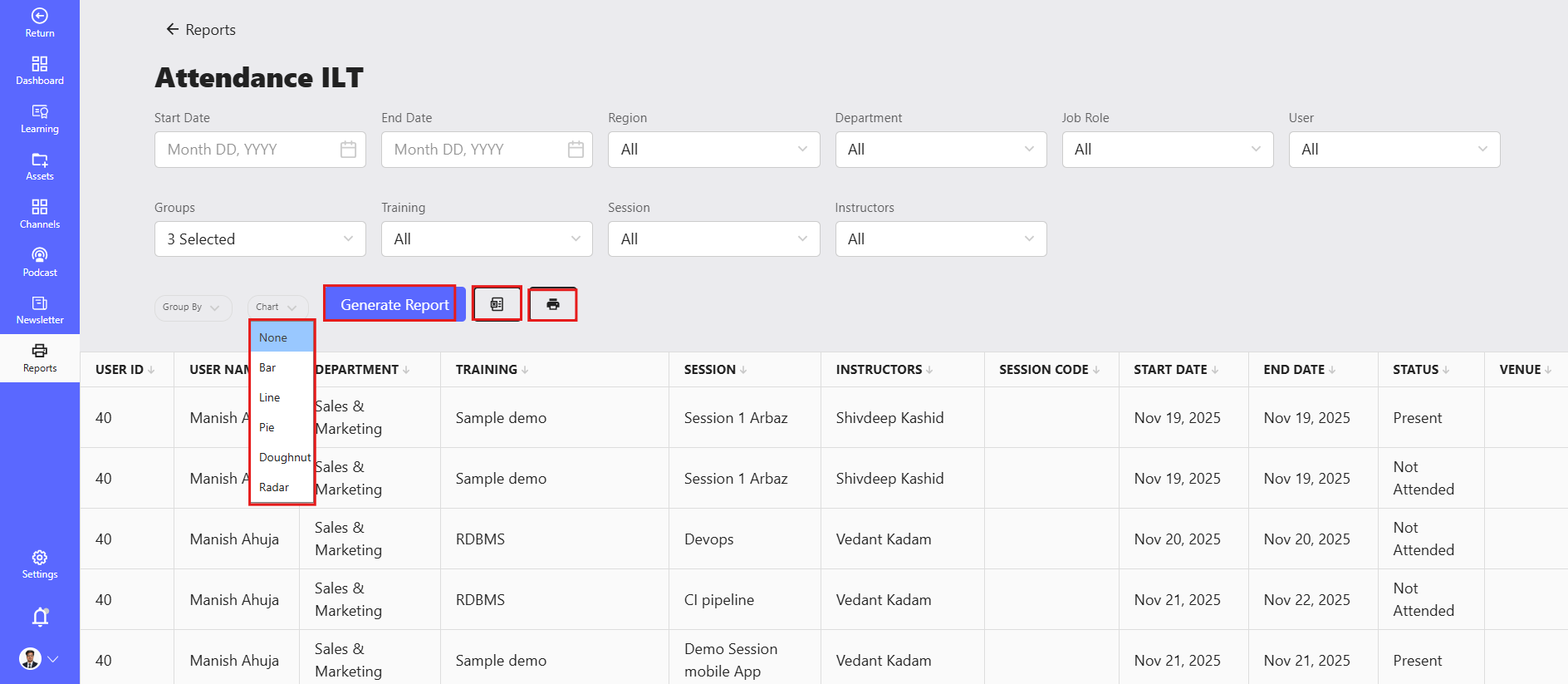
# Step 3: Verify Data & Download Report
- Click on Download / Export button
- Select format (if available): Excel (.xlsx) CSV
- File will be downloaded to your system
# Download Output
- The downloaded file will include:
- Only users from selected group
- Report-specific data (attendance, scores, engagement, etc.)
# Important Notes
- Group must be created before applying filter
- Data will change based on selected group
- Ensure correct filters before downloading -Some reports may take time if data is large