
# User Enrollments Report
The User Enrollments report provides detailed insights into users' assigned learning modules across the platform. This includes both courses and assessments, tracking user progress, completion status, and pass/fail outcomes.
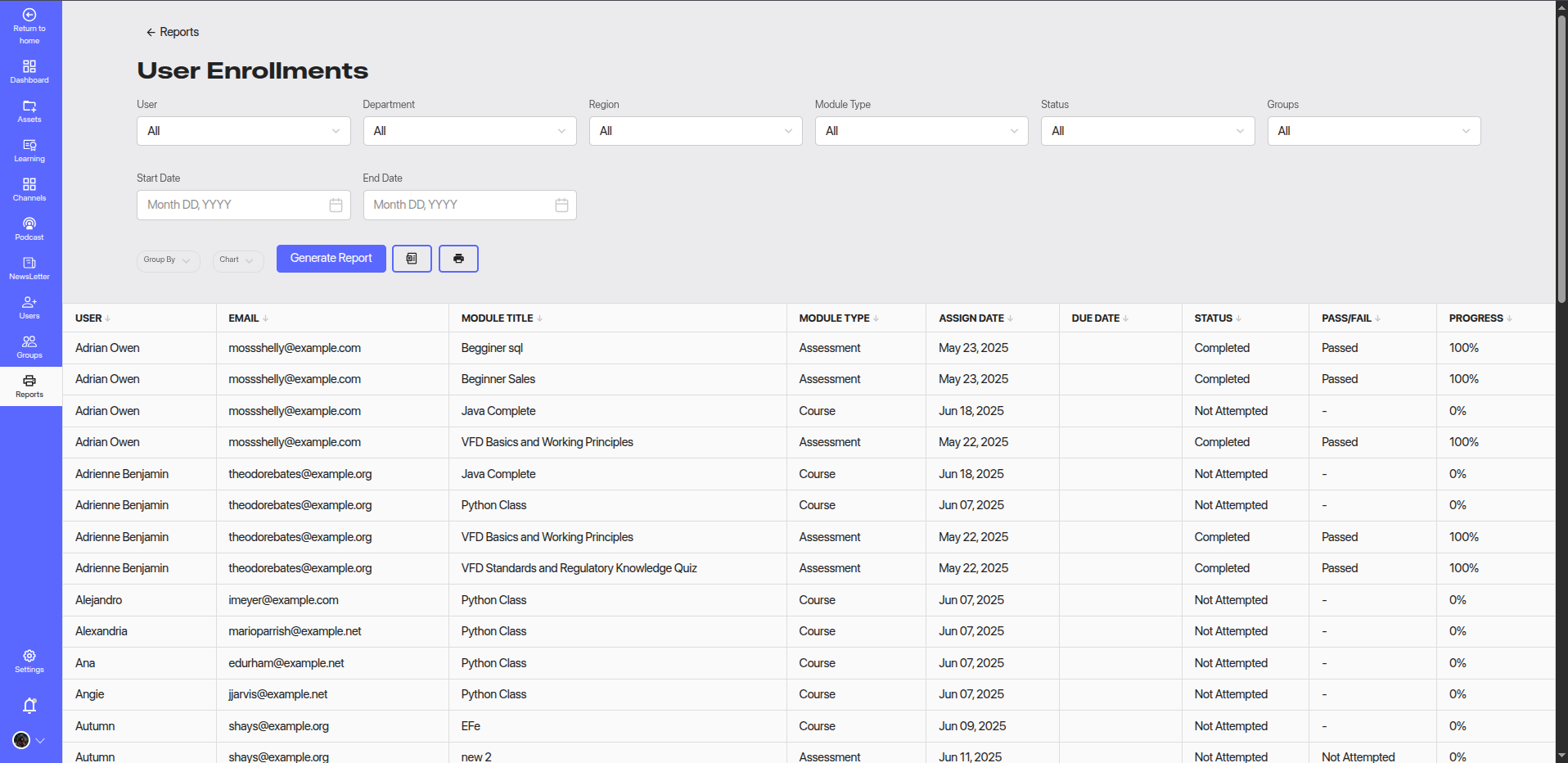
# 🔍 Filters
You can refine the report using the following filters:
- User: Filter by individual user.
- Department: Filter by organizational department.
- Region: Filter by geographical region.
- Module Type: Choose between
CourseorAssessment. - Status: Filter by enrollment status (
Not Attempted,In Progress,Completed). - Groups: Filter by user groups.
- Date Range: Select a start and end date to narrow down by assignment date.
Click the Generate Report button after setting filters to view the results.
# 📑 Report Columns
The generated table contains the following data:
| Column | Description |
|---|---|
| User | Name of the enrolled user. |
| Registered email ID of the user. | |
| Module Title | The name of the course or assessment assigned. |
| Module Type | Indicates if the module is a Course or Assessment. |
| Assign Date | The date on which the module was assigned. |
| Due Date | The due date to complete the module, if applicable. |
| Status | The current status (Not Attempted, In Progress, Completed). |
| Pass/Fail | Outcome of the assessment (only applicable if module type is assessment). |
| Progress | Progress percentage of the user in the assigned module. |
# 📈 Additional Features
- Group By and Chart options enable visualization and grouping of data for deeper insights.
- Use the Print button to generate a printer-friendly version of the report.
- The report automatically sorts and paginates the data for better readability.
# 📌 Use Case
Use this report to monitor learning progress, track compliance with training assignments, and identify users who may need reminders or additional support to complete their training.