
# Creating a Course Manually
Create engaging learning courses manually by adding structured content, interactive elements, and rich media and advance feature such as Click to Reveal, Scenario-Based Learning, Content Media, and Media Upload . This option allows admins or L&D teams to build custom courses directly within the LMS.
# What You Can Do in Manual Course Creation
With Manual Course Creation, you can:
- Add course title, description, and key course details
- Define learning objectives and completion rules
- Assign job roles, skills, and course owners
- Enable badges and certificates for learner achievements
- Create lessons, sections, and units
- Upload learning materials such as videos, images, documents, and media
- Add quizzes to evaluate learner understanding
- Design interactive learning experiences using advanced content blocks
- Build structured, role-based, or skill-based training directly inside the LMS
# Steps to Create a New Course
# 1. Navigate to the Courses Section
- Go to Training > Courses in the CircleHD dashboard.
- Click on New Course to begin creating your course.
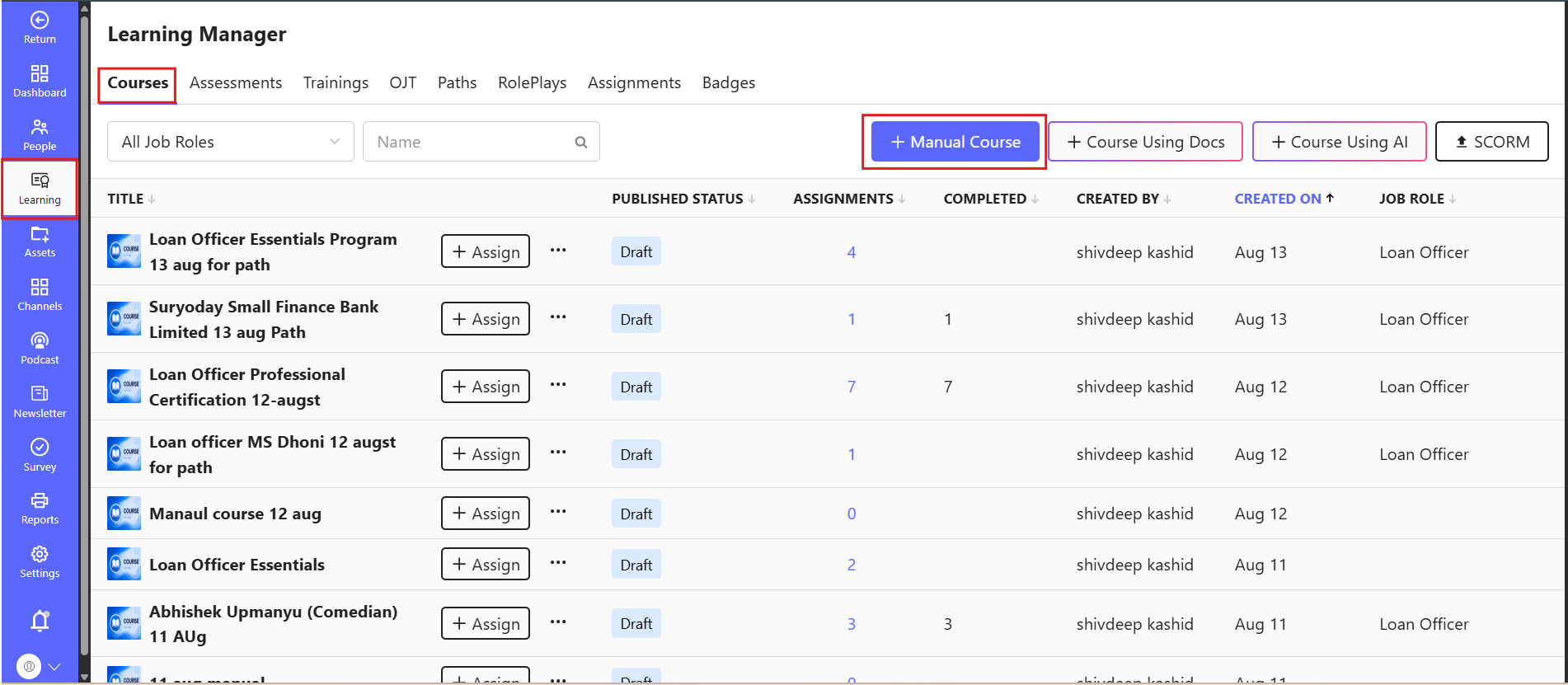
# 2. Add Course Details
- Course Title: Choose a relevant and concise title.
- Description: Provide a brief summary of the course’s purpose and learning objectives.
- Learning Description: Add detailed learning information for learners, if applicable.
- Objective: Define the key learning objective of the course. All the units must be completed in order: Enable this option if learners must complete all units sequentially.

# 3. Configure Course Settings
You can configure additional course settings based on your training needs:
- Badge: Select a badge to reward learners, or leave it as None if not required.
- Business Unit: Assign the relevant Business Unit.
- Department: Assign the relevant department.
- Job Role: Map the course to a specific job role, if applicable.
- Skills: Assign relevant skills or competencies for skill-based learning alignment.
- Duration in Hours: Define the estimated course duration.
- Tags: Add tags for easier search and organization.
- Owners: Assign the course owner or responsible admin/L&D user.
- Offer Certificate of Completion: Enable this option to award a certificate after course completion.
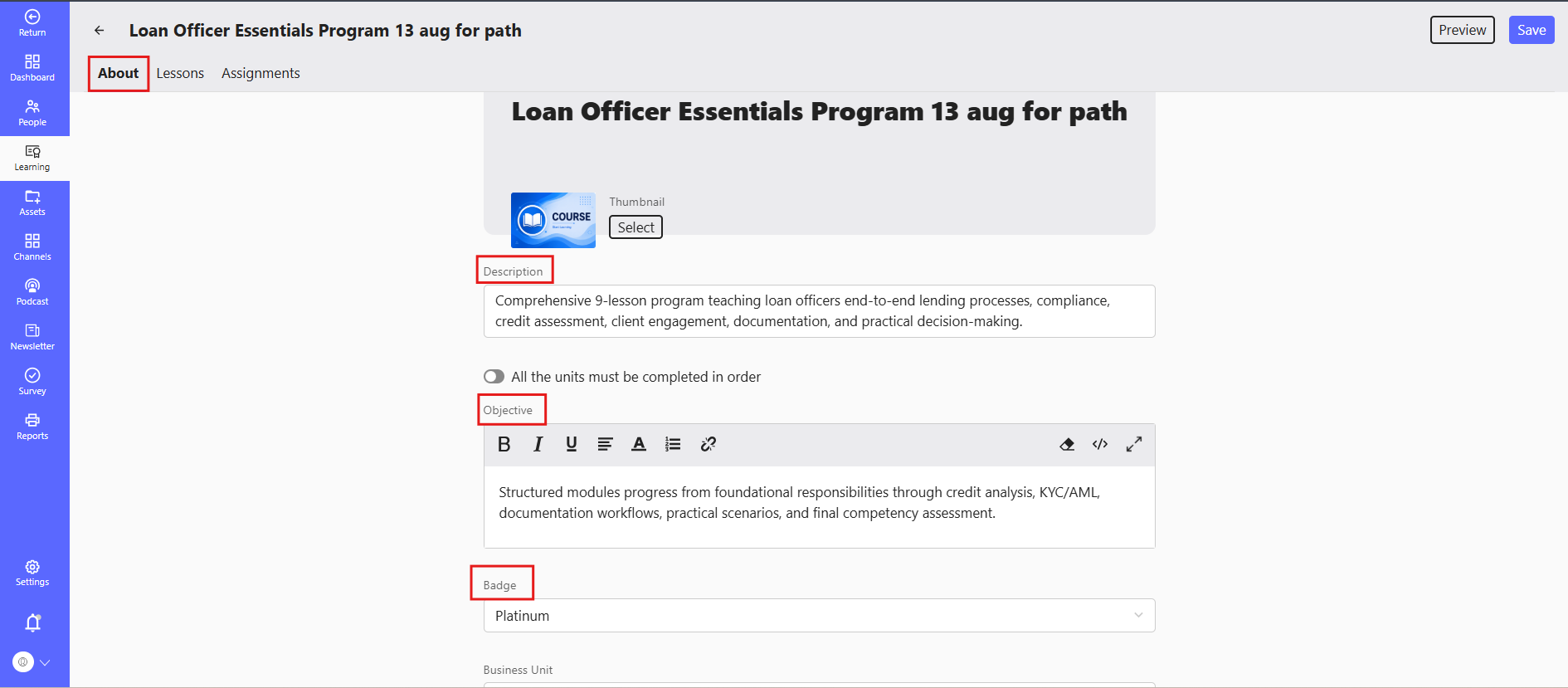
# Badges & Certification
The Badges & Certification feature allows admins to reward learners with achievements after course completion. These rewards help recognize learner progress and encourage successful completion of learning programs.
Admins can configure badges and certificates directly during manual course creation.
# How Badges & Certification Work
When creating or editing a manual course, you can enable:
- Badges
- Certificate of Completion
These rewards are awarded based on the course completion rules and quiz configuration.
# 4. Completion Rules for Badges & Certification
# 1. When “Quiz at the End of the Course” is Enabled
If Badges and Certification are enabled, and the Quiz at the End of the Course option is selected:
- Learners must complete the course
- Learners must pass the final quiz
- Badges and Certification will be awarded only after successfully passing the final quiz
This ensures that learners receive achievements only after demonstrating understanding of the course content.
# 2. When “Quiz at the End of the Course” is Not Enabled
If Badges and Certification are enabled, but the Quiz at the End of the Course option is not selected:
- Learners only need to complete the course
- Badges and Certification will be awarded automatically after course completion
In this case, no quiz pass requirement is needed to receive the badge or certificate.
# Best Practices for Course Creation
- Define Clear Objectives: Set the course purpose and learning outcomes before adding content.
- Use Structured Learning: Organize content into sections, units, and lessons for better comprehension.
- Enable Rewards Thoughtfully: Use badges and certificates to motivate learners and reinforce course completion.
- Map Skills & Roles: Assign job roles, skills, and owners to improve learning relevance and reporting.
- Add Interactive Content: Use advanced content blocks to make learning more engaging.
- Assess Learning: Add quizzes to validate learner understanding and track progress.
# Adding Lessons, Sections, Units & Quizzes
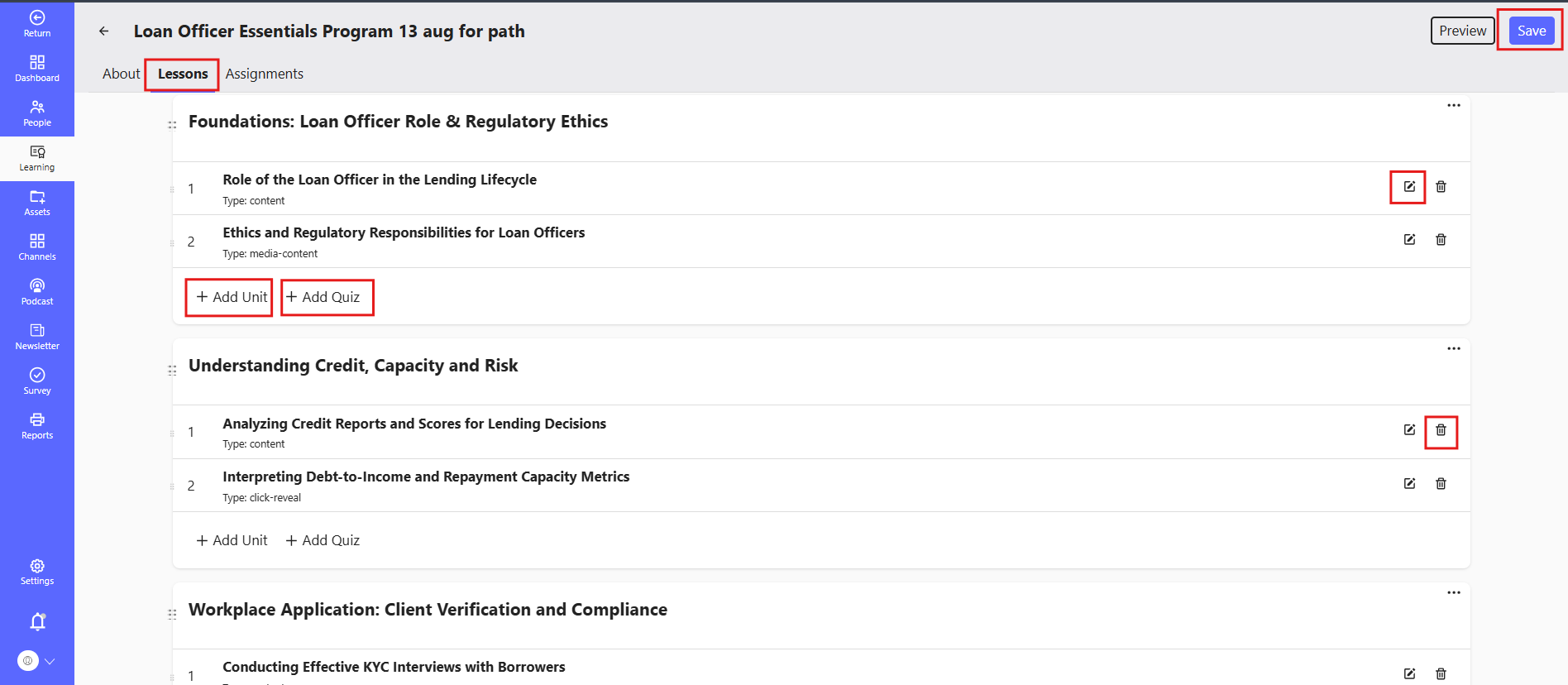
# Course Lesson Management
- Click Add Unit to add a new unit
- Click Add Quiz to include a quiz within a unit
- Click Add Section to divide lessons into structured segments
- Drag and drop to rearrange lessons or units
- Use the Trash icon to delete units
- Click the three dots to rename or delete a lesson
# Adding a Unit
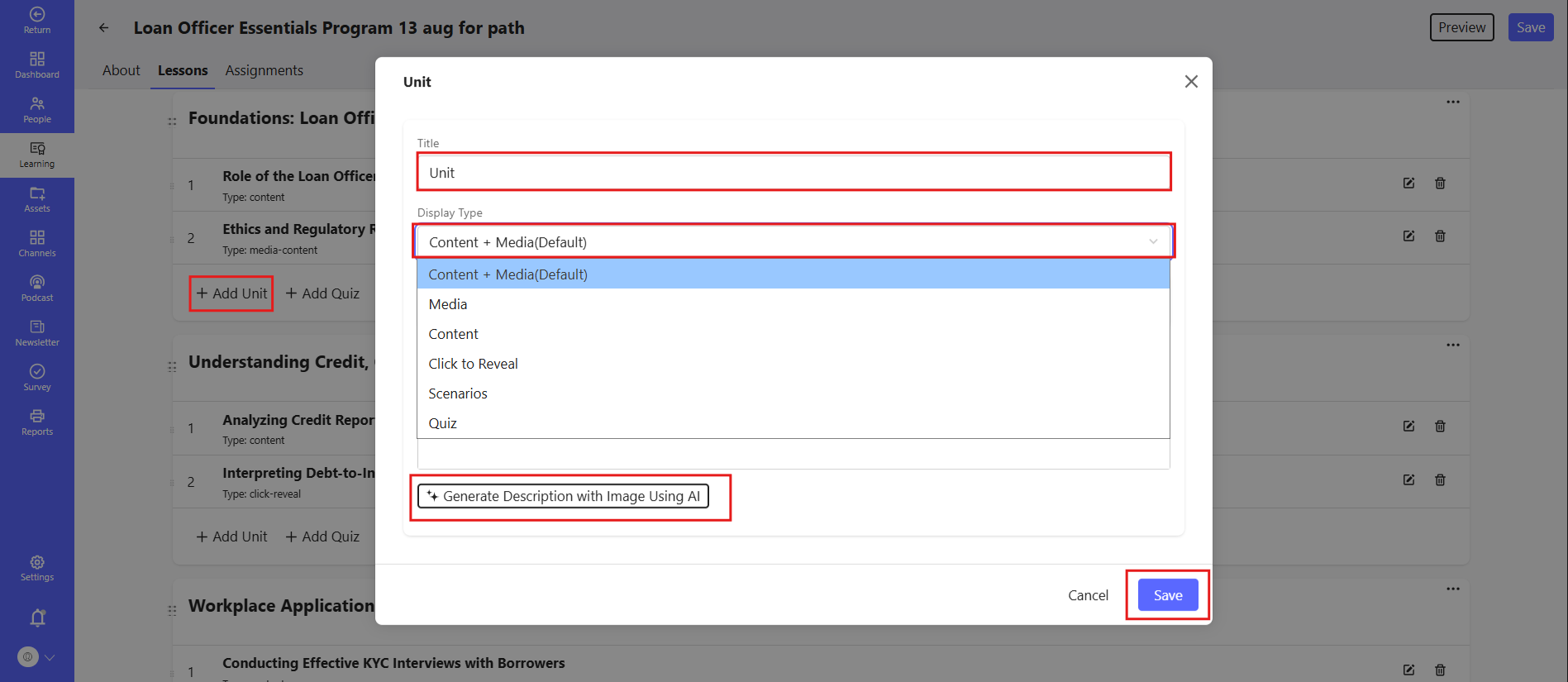
Enter the required details for the unit:
- Title: Enter the title for the unit
- Description: Provide a short description of the unit content
- Generate Description using AI (optional): Use AI assistance to generate a unit description
- Duration: Set the estimated duration for the unit
- Add Media: Upload videos, images, text, or supporting files
- Click Save to finalize the unit
# Adding a Quiz
Adding a quiz is optional but recommended for reinforcing learning.

- Click Add Quiz inside a unit.
- Click Add Question to create quiz questions.
- Choose the question type (Multiple-choice or Single-choice).
- Add answer choices and select the correct option(s).
- (Optional) Provide an Explanation for the correct answer.
- Click Save to confirm.