
# Training Calendar
The Training Calendar provides a centralized view of all scheduled classroom sessions and live learning events. It allows admins and trainers to efficiently manage and track training activities by date, ensuring smooth planning and execution.
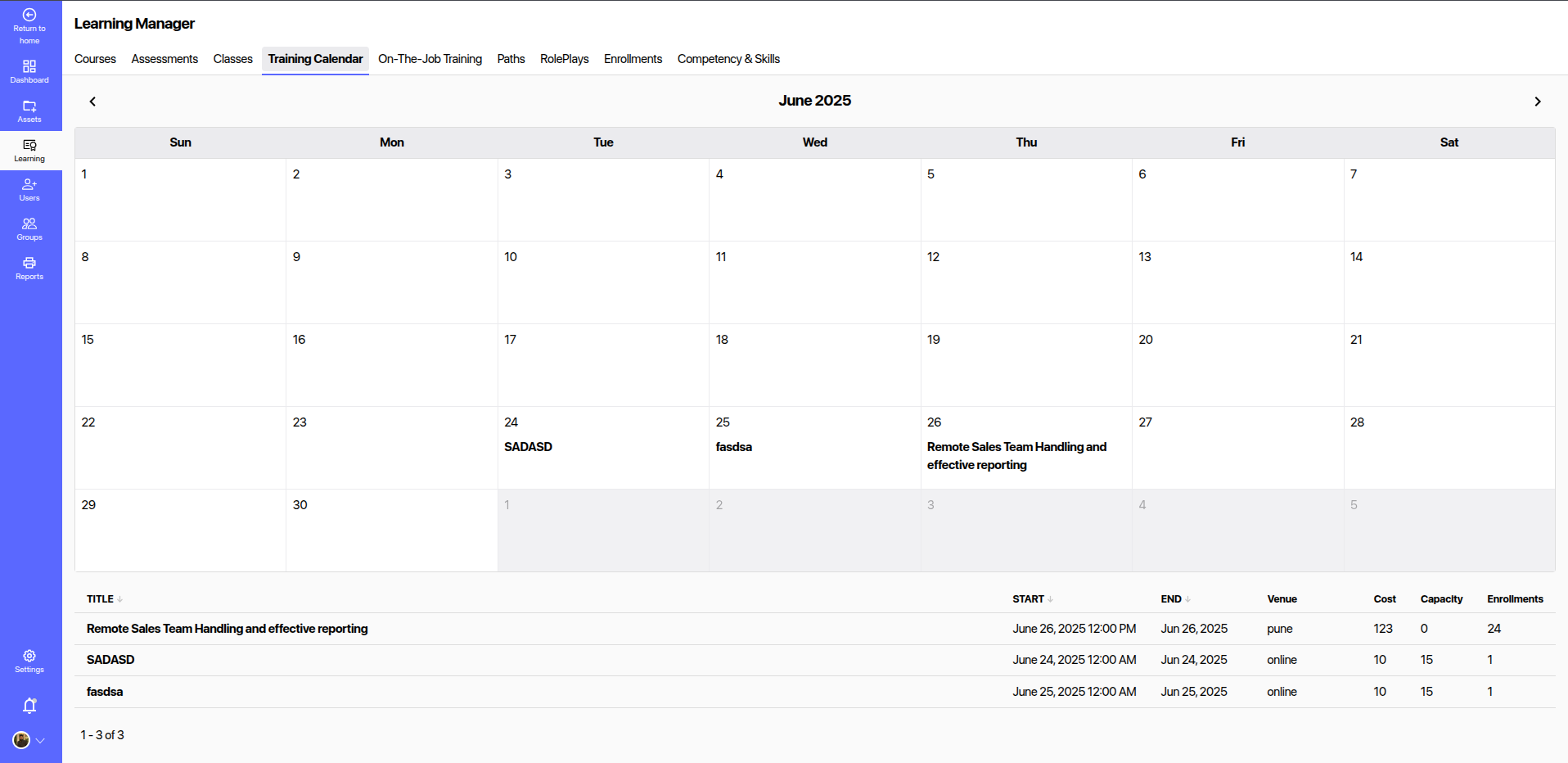
# 📅 Calendar View
The top section shows a monthly calendar layout where each classroom or training session is displayed on its scheduled date.
Key features include:
- Session Titles visible in the calendar view.
- Color-coded indicators for easy identification of session types or status.
- Navigation options:
- Today Button – Quickly jump back to the current date.
- Month Navigation – Scroll through previous or upcoming months.
Clicking on a session name allows you to view or edit its details.
# 📋 Session List Table
Below the calendar, a table displays all scheduled sessions for the selected period, including the following details:
| Column | Description |
|---|---|
| Title | Name of the classroom or training session |
| Created By | The admin or trainer who created the session |
| Created | The date when the session was created |
| Sessions | Number of session occurrences |
| Enrollments | Total number of users enrolled in the session |
| Completed | Number of users who have completed the session |
| Published | Toggle to publish/unpublish the session |
| Actions | Assign the classroom to learners or manage settings (... menu) |
# ✅ Use Cases
- View all classroom training sessions in a single calendar view.
- Quickly monitor session enrollments, completion status, and session counts.
- Manage session publishing and assignments directly from the table.
# 💡 Tips
- Use consistent and descriptive titles for training sessions.
- Regularly update session enrollment data to ensure accurate tracking.
- Plan monthly or quarterly sessions using the calendar for better scheduling and resource allocation.
Quick Action: Click New Class to create and schedule a new classroom session instantly.