
# Creating an Assessment Manually
Follow these steps to manually create an assessment:
# Step 1: Navigate to the Assessment Section
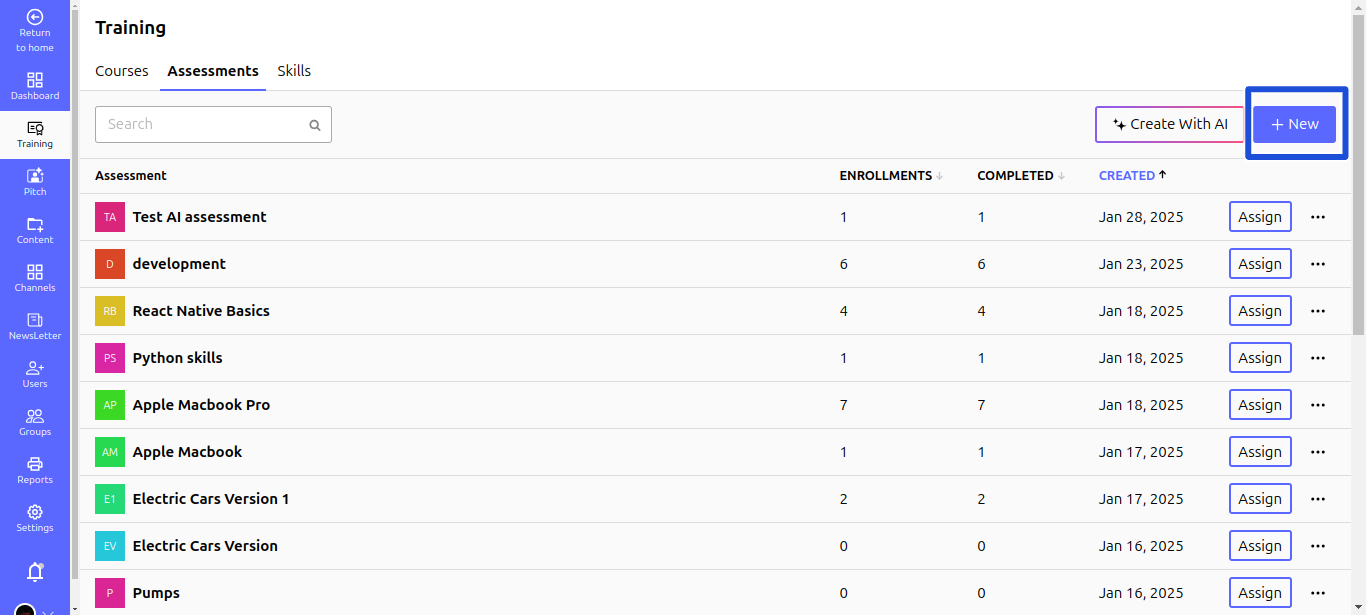
- Go to Training > Assessments.
- Click the + New button to start creating an assessment.
# Step 2: Add Assessment Details
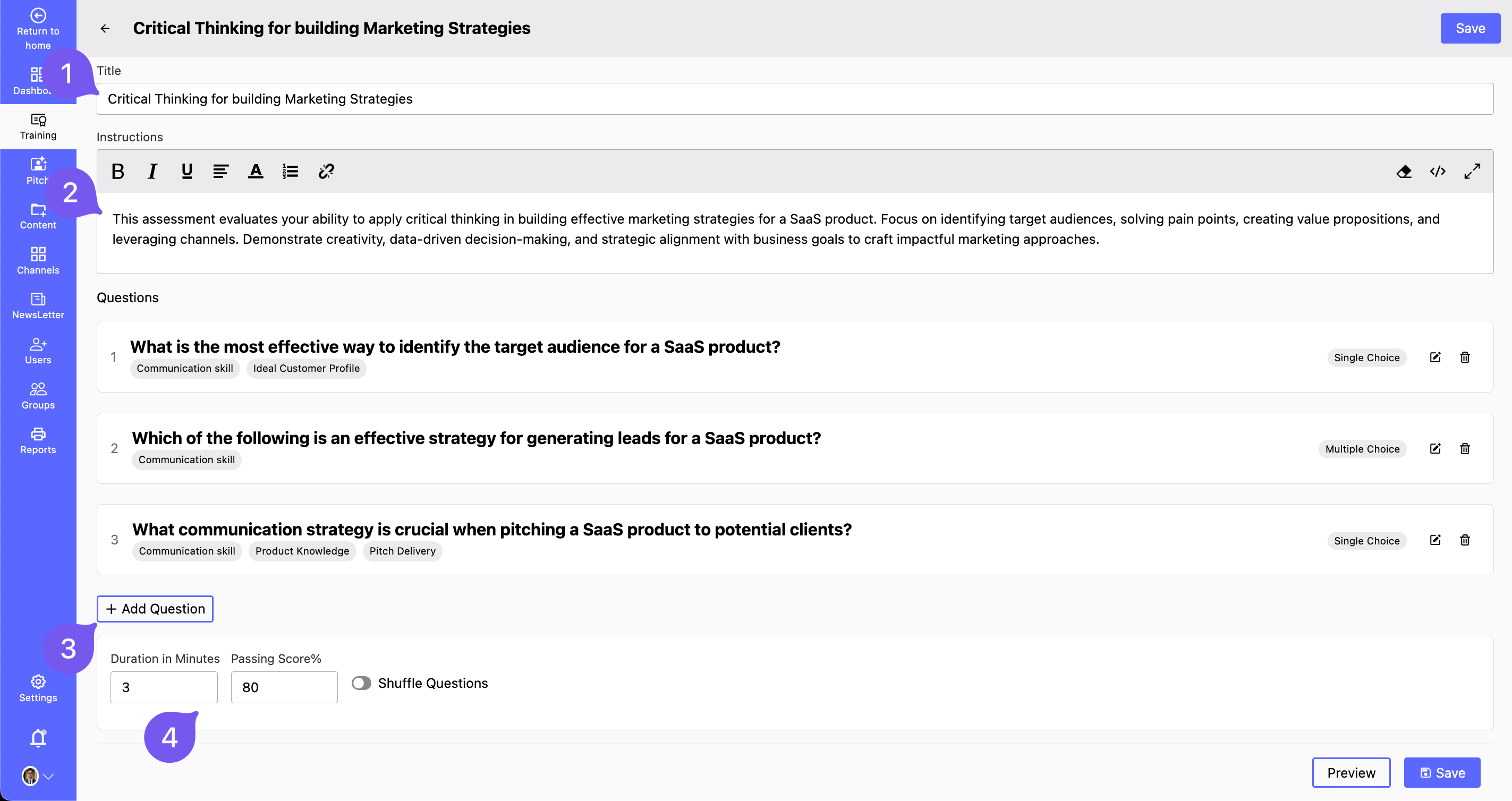
- Title – Enter a name for the assessment.
- Instructions – Provide guidelines or details for the participants.
- Add Questions – Click Add Question to include questions in the assessment.
- Set Parameters:
- Define the Duration for completing the assessment.
- Specify the Passing Score required.
- Toggle the Shuffle Question Order option (Enable/Disable).
- Click Save to store the assessment.
# Adding Questions to the Assessment
# Steps to Add a Question:
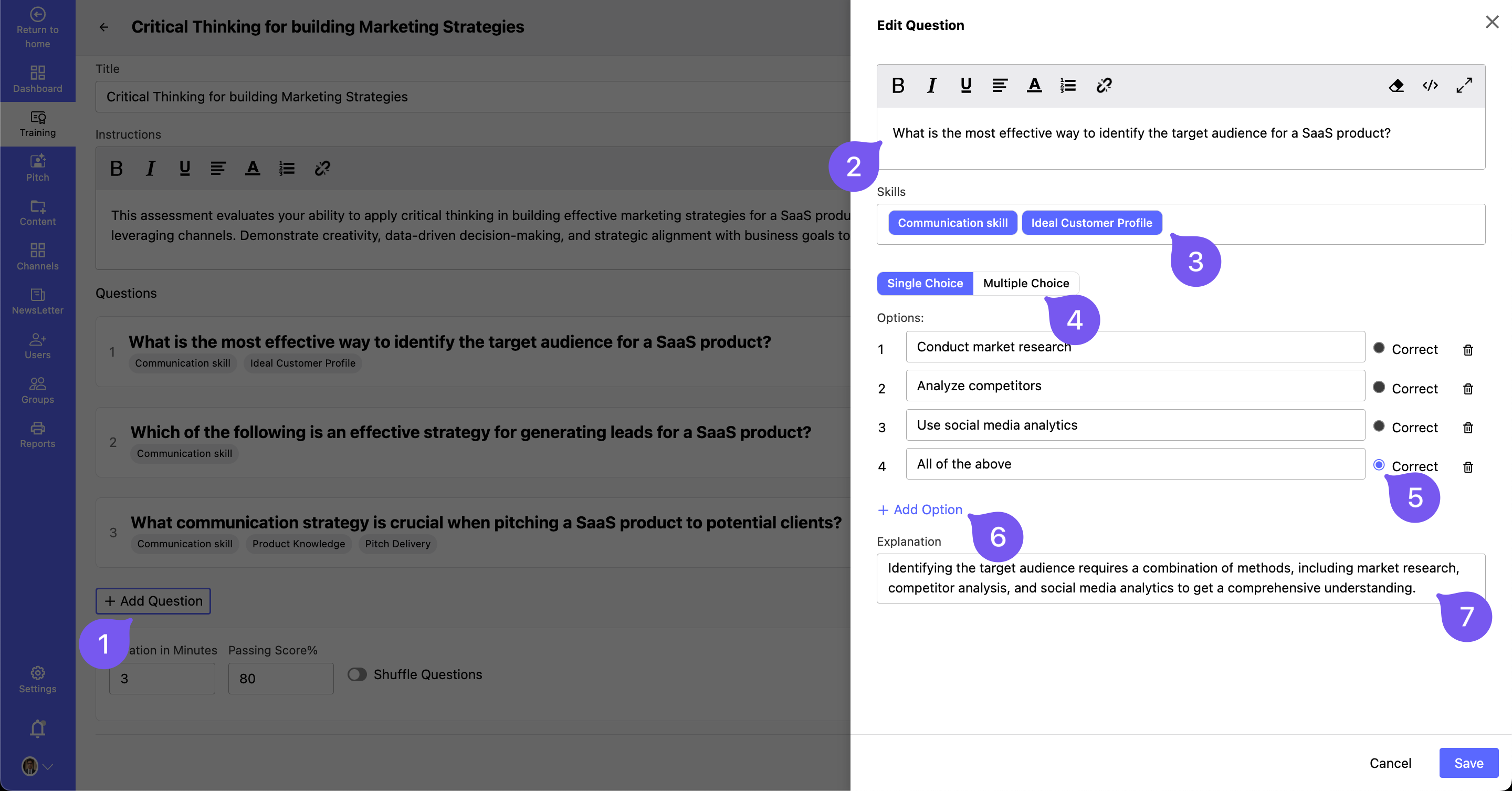
- Click Add Question.
- Enter the Question in the editor.
- Assign Skills related to the question.
- Select the Question Type (Single/Multiple-Choice).
- Add answer Choices and mark the Correct Option(s).
- Provide additional Options, if applicable.
- Add an Explanation for the correct answer.
- Click Save to finalize the question.
📌 Repeat this process to add more questions.