
# Custom Field Settings
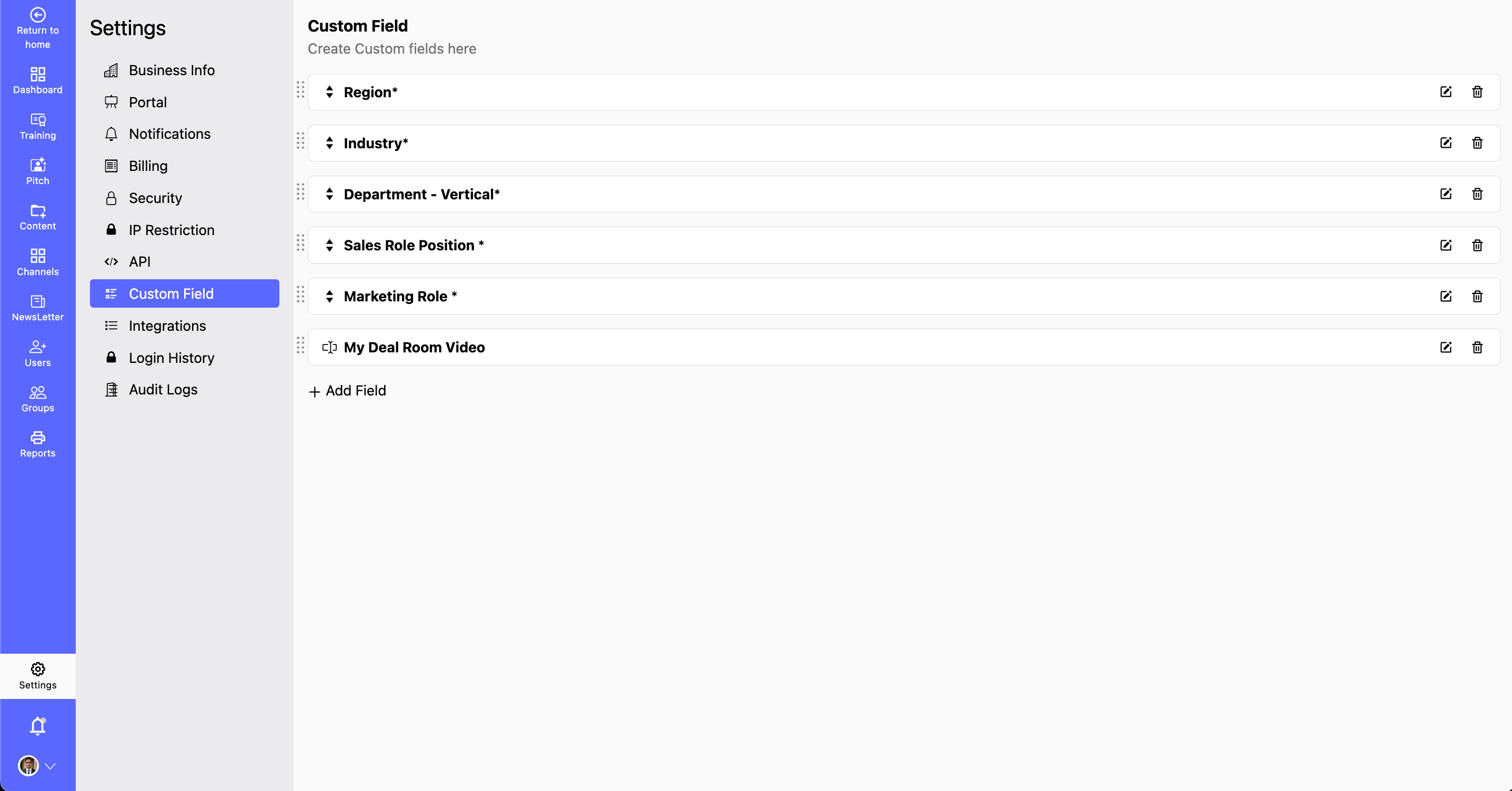
- The Custom Fields section allows you to create and manage custom fields, making it easier to categorize, search, and filter content efficiently. These fields enhance the flexibility of your Content Library, allowing better organization and retrieval of information.
# Why Use Custom Fields?
- Improve searchability by adding custom filters. Enhance content sorting within the Content Library. Personalize data organization to match your business needs
- Example: File Type is a custom field used in the Content Library for better classification.
# How to Create and Manage Custom Fields?
Step 1: Go to Settings > Custom Fields.
- View and manage existing custom fields.
- Add a New Custom Field:
Step 2: Click Add New Field.
- Enter the field name and select its data type (e.g., text, number, date, dropdown, etc.).
- Assign it to the relevant module where it should be applied.
- Edit or Delete Custom Fields:
Step 3: Select an existing field to modify its settings.
- You can also modify the already created custom fields
- To remove a field, click Delete, ensuring it is no longer in use.
- Save Changes and Apply Filters:
Step 4: Click Save Changes to apply updates.
- Use these fields in search filters and sorting within the Content Library.