
# Portal Settings
- The Portal section allows you to customize and personalize the CircleHD portal according to your brand's identity and user experience preferences. It consists of three key sections: Basics, Frontpage, and Social, each offering unique customization options.
# You can customize different Tabs in the Portal section:
 - Basics
 - Frontpage
 - Social
# 1. Basics
- The Basics section enables you to modify the CircleHD portal’s title, logo, theme color, and overall branding settings. You can also customize the portal with front pages, headers, and footers to enhance user experience.
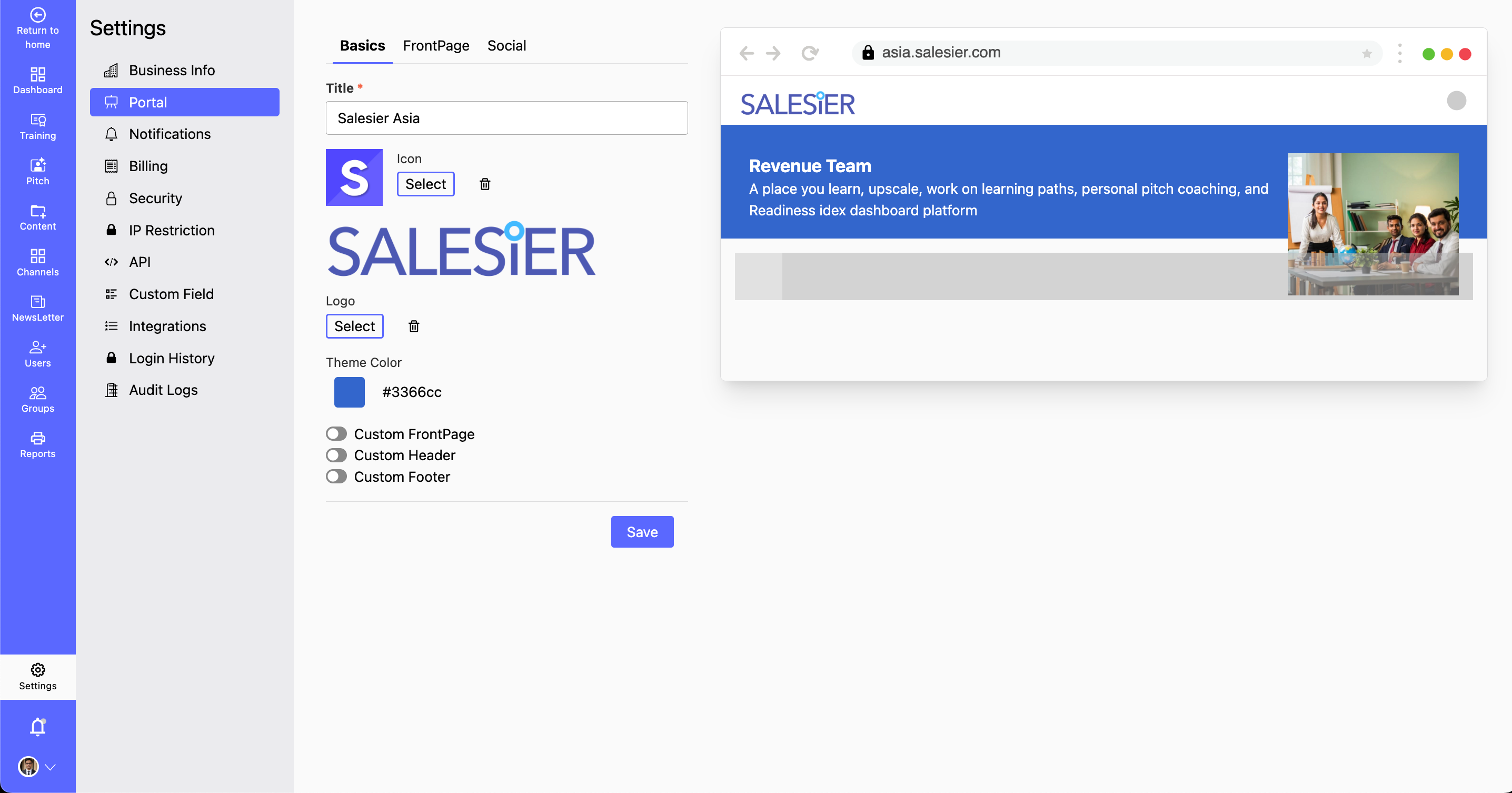
How to Customize Portal Basics?
Step 1: Navigate to Settings > Portal > Basics.
Step 2: Update Branding Elements:
- Modify the Portal Title to reflect your brand.
- Upload a custom logo to personalize the interface.
- Select a Theme Color to align with your brand’s style.
Step 3: Save Changes:
Review your updates and click Save Changes to apply them.
# 2. Frontpage
- The Frontpage section lets you design the portal’s main landing page, enhancing the first impression for users. You can customize elements such as the heading, subtitle, hero image, and call-to-action button.
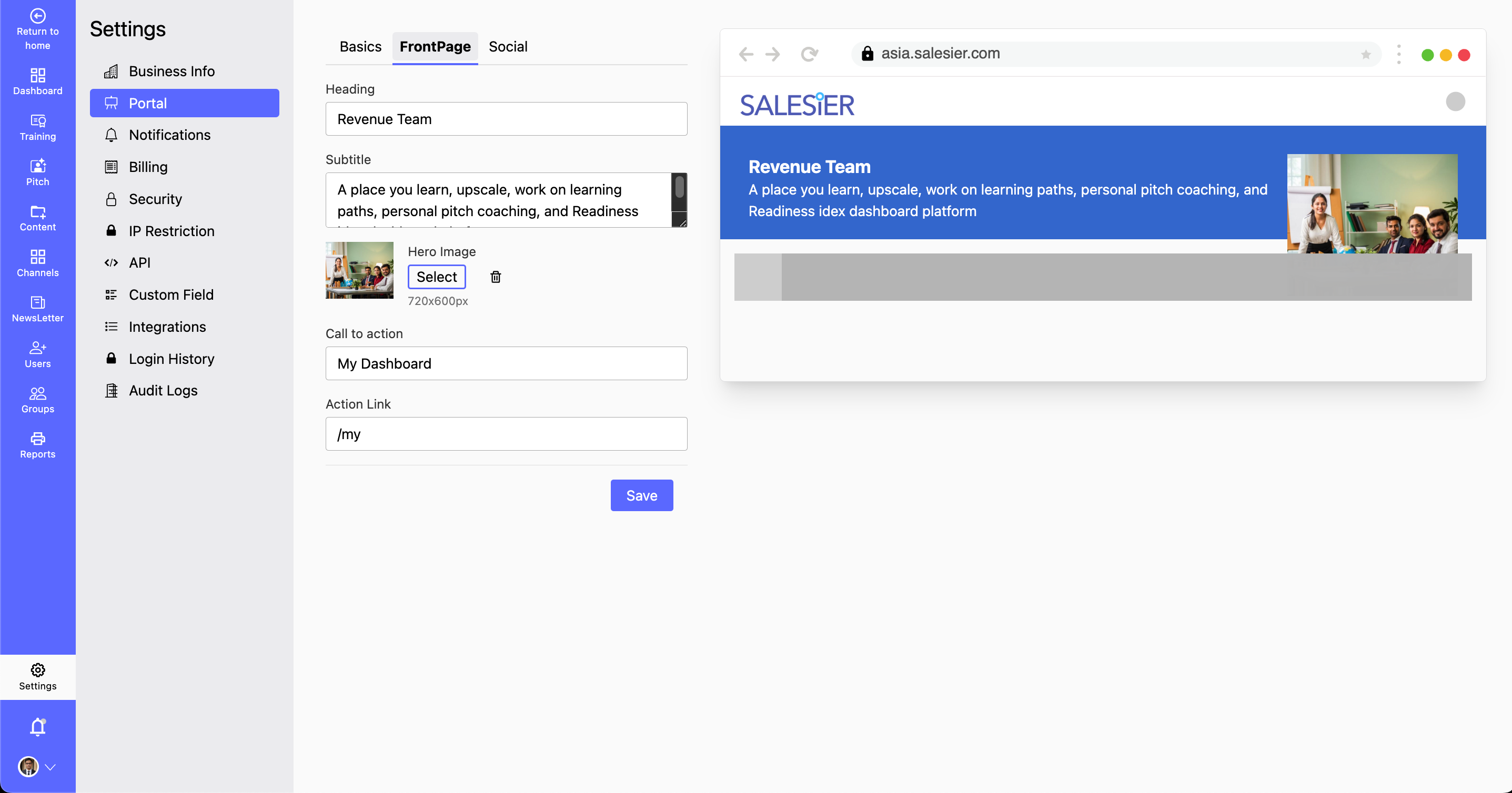
How to Customize the Portal Frontpage?
Step 1: Navigate to Settings > Portal > Frontpage.
Step 2: Update Frontpage Elements:
- Set the Heading to define the main message.
- Add a Subtitle for additional context.
- Upload a Hero Image to create visual impact.
- Configure the Call-to-Action Button (custom text & link).
Step 3: Save Changes:
Review and click Save to update the frontpage.
# 3. Social
- The Social section allows you to link your CircleHD portal with various social media platforms and integrate Google Analytics for traffic monitoring.
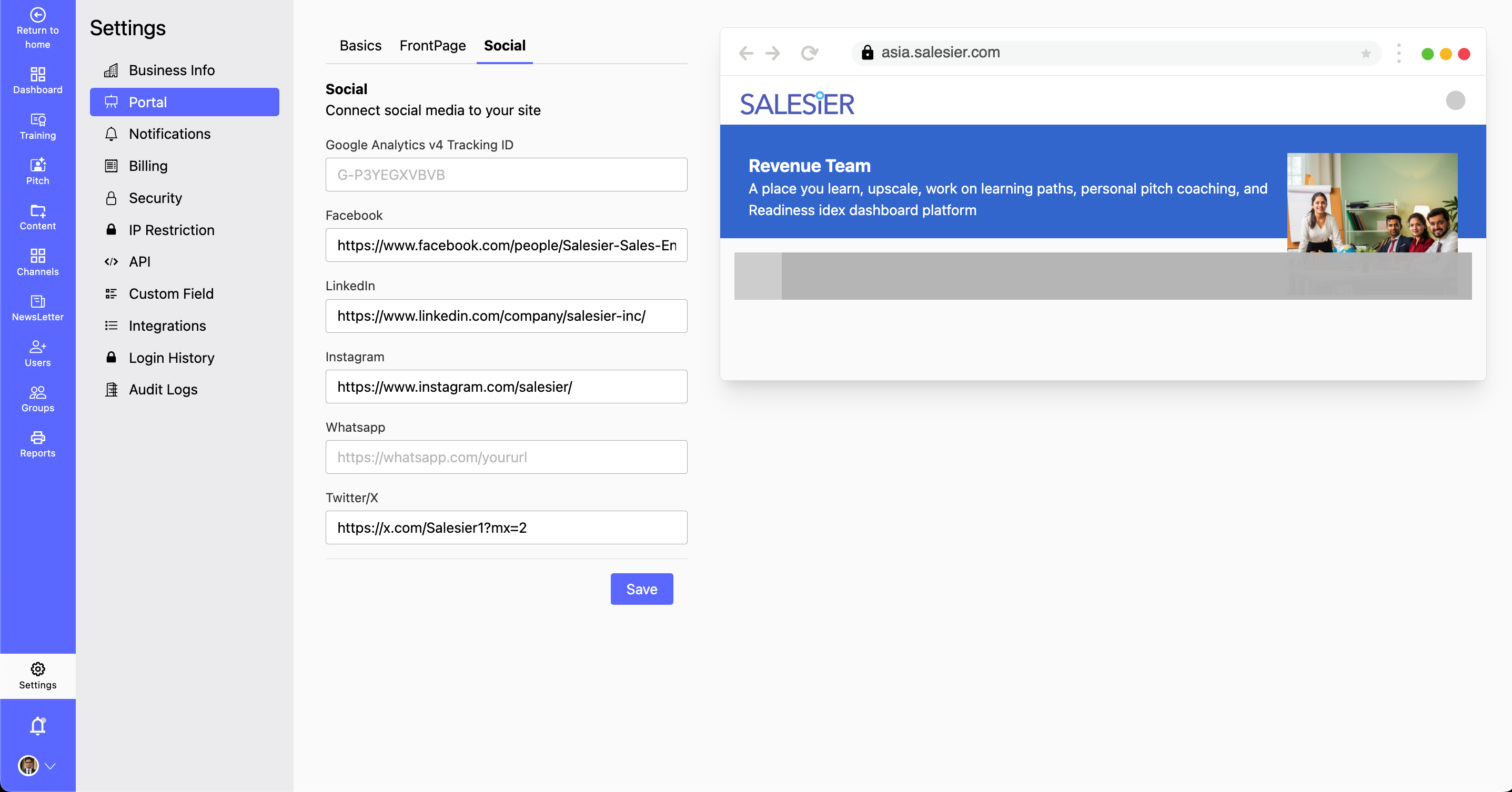
How to connect Social Media to your site?
Step 1: Navigate to Settings > Portal > Social.
Step 2: Link Social Media Accounts:
Add links for Facebook, LinkedIn, Instagram, and Twitter/X.
Step 3: Enable Google Analytics Tracking:
Enter your Google Analytics Tracking ID to monitor visitor data and engagement.
- The Google Analytics Tracking ID is a unique identifier used to connect your CircleHD portal to Google Analytics, allowing you to monitor website traffic, user behavior, and engagement metrics. By integrating this ID, you gain valuable insights into how users interact with your portal.
Step 4: Save Changes:
Review the updates and click Save Changes to apply them.